

You’re exporting Xero data to CSV files every month, manually copying and pasting and fighting with VLOOKUP formulas that break when columns change. Your consolidations take 12 days instead of 2. Sound familiar? Power Query can transform your Xero data workflows – if you can connect them. Unlike Power BI, there’s no native Xero to Power Query connector. But you have options. This guide shows you exactly how to bridge the gap, automate your financial reporting, and cut your month-end close time by 100-150%.
What Is Xero to Power Query?
Xero to Power Query refers to connecting your Xero accounting data with Microsoft’s Power Query data transformation tool. Power Query is the data preparation engine available in both Excel and Power BI. It lets you import, transform, and automate data workflows. Once connected to Xero, you can refresh data with one click, combine multiple entities, and build reports that update automatically – whether you’re working in Excel or Power BI.
Ready to Automate Your Financial Consolidation?
Table of Contents
Why Connect Xero to Power Query?
Your finance team wastes many hours monthly on manual data exports. In fact, 50% of finance teams still take over a week to close the books. Every CSV export. Every copy-paste. Every broken formula. Power Query eliminates these repetitive tasks.
When you connect Xero to Power Query, you get:
- One-click data refresh instead of manual CSV exports
- Automatic transformations that remember your data cleaning steps
- Multi-entity consolidation without switching between Xero files
- Error reduction by eliminating manual data entry
No more waiting for updated reports. No more reconciliation errors from manual processes.
Power Query in Excel vs Power BI: Understanding Your Options
Power Query isn’t a standalone tool – it’s the data transformation engine built into both Excel and Power BI. The difference lies in where you use it:
Power Query in Excel: Transform and prepare data within spreadsheets. Perfect for financial teams who need to work with familiar Excel formulas and pivot tables alongside automated data connections.
Power Query in Power BI: The same transformation engine, but within a complete business intelligence platform. You get interactive dashboards and advanced visualisations on top of your data transformations.
For Xero users, neither Excel nor Power BI offers a native Power Query connector to Xero. You’ll need third-party solutions regardless of which platform you choose. Power BI does offer some Xero integration apps, but these work differently from direct Power Query connections.
Methods to Connect Xero to Power Query
Since there’s no native connector, you need a bridge between Xero and Power Query. Here are your options:
1. Third-Party Connectors
Automated solutions that create a direct pipeline between Xero and Power Query:
- dataSights: Syncs Xero to a dedicated Microsoft cloud database. Connect Power Query directly to SQL Server. Handles multiple entities with auto-eliminations.
- Accounting.BI: Creates an API connection between Xero and Power Query. Real-time data access with built-in transformations.
- CData: Provides ODBC/OData endpoints for Power Query. Supports Direct Query mode for large datasets.
- SyncHub: Stages Xero data in a relational database. Power Query connects via a standard SQL Server connection.
- OdataLink: Single consolidation feed for multiple Xero files. Designed specifically for Power Query integration.
This video demonstrates the exact SQL Server connection process you’ll use when connecting Power Query to Xero data through database staging solutions. Watch how to configure server credentials and establish the data connection in both Windows and Mac versions of Excel.
2. API-Based Connections
For technical teams comfortable with APIs:
Some third-party consolidation tools use OData feeds to expose Xero data to Power Query. You configure an API server, set authentication, and then connect Power Query to the OData URL. A more complex setup, but it offers complete control.
3. Manual Export-Import
The basic approach:
- Export reports from Xero as Excel files
- Import into Power Query
- Apply transformations
- Manually repeat for updates
Works for one-off analysis. Not sustainable for regular reporting.

Setting Up Your Xero to Power Query Connection
Let’s walk through the setup using the database staging approach (most reliable for multi-entity consolidation):
Step 1: Choose Your Connection Method
Select a solution based on your needs:
- Single entity, occasional updates: Manual export or basic API connection
- Multiple entities, regular reporting: Database staging solution like dataSights
- Real-time requirements: Direct API connectors
Step 2: Configure Your Data Source
For database staging solutions:
- Connect your Xero organisation(s) to the staging service
- Obtain database credentials (server, database name, username, password)
- Configure refresh schedules if available
Step 3: Connect Power Query to Your Data
In Excel or Power Bi Desktop:
- Go to Data tab > Get Data > From Database > From SQL Server Database (Excel) or Get Data > SQL Server (Power BI)
- Enter server and database details
- Switch to “Database” authentication
- Enter username and password
- Select tables to import
Step 4: Transform Your Data
Power Query remembers your transformation steps:
- Filter to exclude deleted records
- Merge data from multiple tables
- Add custom calculations
- Format for your reporting needs
Step 5: Set Up Refresh
Configure how often Power Query pulls updated data:
- Manual refresh: Click “Refresh All” when needed
- Scheduled refresh requires Power BI Service or VBA automation
- Third-party tools often include automated scheduling
Consolidating Multiple Xero Entities in Power Query
Managing multiple Xero organisations? Manual consolidation takes days. Power Query reduces this to minutes.
Traditional Approach Problems:
- Export each entity separately
- Copy-paste into the master spreadsheet
- Manually eliminate intercompany transactions
- Errors multiply with each step
Power Query Solution:
dataSights handles auto-eliminations and multi-currency conversions. You connect once and refresh to update all entities.
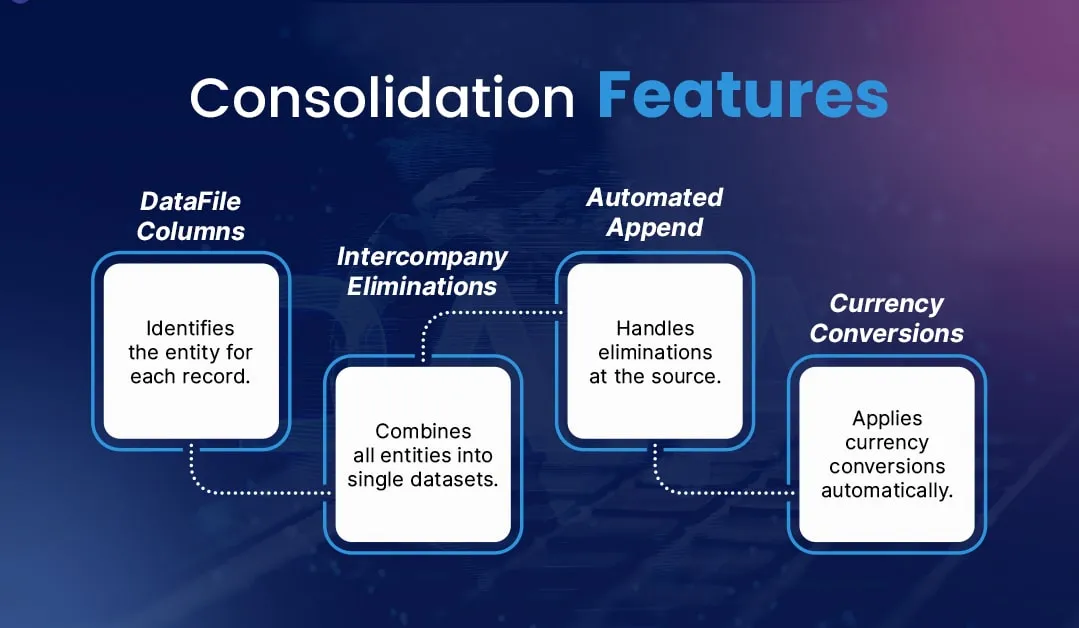
Key features for consolidation:
- DataFile columns identify which entity each record belongs to
- Automated append combines all entities into single datasets
- Intercompany eliminations handled at source
- Currency conversions applied automatically
Common Xero to Power Query Errors and Solutions
Privacy Firewall Error
Problem: Formula.Firewall: Query references other queries or steps, so it may not directly access a data source
Solution:
- Go to Data Source Settings
- Set all sources to the same privacy level (usually “Organisational”)
- Or disable privacy checks (only for non-sensitive data)
Authentication Failures
Problem: Credentials are invalid or expired
Solution:
- Check Xero user permissions (need Advisor or Standard + Reporting)
- Re-authenticate with the data source
- For API connections, regenerate tokens
Missing Data After Refresh
Problem: Tables are empty or incomplete after refresh
Solution:
- Verify Xero API limits not exceeded
- Check date range parameters
- Ensure all entities are still connected
- Incremental refresh may help with large datasets
Automating Your Xero Data Refresh
Manual refresh defeats the purpose. Here’s how to automate:
Option 1: Power Automate
Create flows that trigger Power Query refresh on schedule. Requires Premium Power Automate license.
Option 2: VBA Macros
Schedule refresh at specific times using VBA:
- Workbook_Open event triggers refresh
- Windows Task Scheduler runs Excel file
- Works for desktop automation
Option 3: Third-Party Scheduling
Most connector solutions include scheduling:
- dataSights: Automated sync with configurable frequency
- SyncHub: Near real-time updates
- CData: Gateway-based scheduling
Refresh Frequency Considerations:
- Xero API has rate limits
- More entities = longer refresh times
- Balance frequency with performance
- Consider incremental refresh for large datasets
Advanced Power Query Techniques for Xero Data
Once connected, Power Query transforms your Xero workflows:
Custom Columns for Xero-Specific Calculations
- Calculate days’ sales outstanding
- Add ageing buckets for debtors
- Create management reporting categories
Parameterised Queries
Use parameters for:
- Date ranges (financial year, month-end dates)
- Entity selection
- Account filtering
Error Handling
Implement try…otherwise patterns to handle:
- Missing data gracefully
- Conversion errors
- Null values in calculations
Performance Optimisation
- Filter early in your queries
- Use query folding where possible
- Avoid loading unnecessary columns
- Consider data types for efficiency
Frequently Asked Questions
Is there a native Xero connector for Power Query?
Can I connect multiple Xero companies to Power Query?
How much do Xero to Power Query connectors cost?
What's the difference between Power Query and Power BI for Xero connections?
How often can I refresh Xero data in Power Query?
Do I need technical skills to connect Xero to Power Query?
Can Power Query handle Xero's tracking categories?
What happens if my Xero data structure changes?
Is my Xero data secure when using Power Query connections?
Can I write data back to Xero from Power Query?
Your Manual Exports End Here
Power Query transforms how you work with Xero data. No more CSV exports eating 15 hours monthly. No more consolidations taking 12 days. Connect once, refresh automatically, and watch your month-end close drop to 5 days. The technology exists – dataSights clients prove it daily with 100-150% faster closes across multiple entities. Ready to Join 300+ finance teams who’ve already automated their Xero reporting? Start your transformation at dataSights’ Xero to Power BI connector.
Cut Your Month-End Close From 15 Days to 5
Manual Xero exports waste 15 hours monthly. Broken consolidations. Formula errors. Late reports. Power Query automation through dataSights’ Xero connector changes this completely. Connect multiple entities. Automate transformations. Refresh with one click. Join 300+ businesses already saving 100-150% on month-end close time.
About the Author
Kevin Wiegand
Founder & Client happiness