
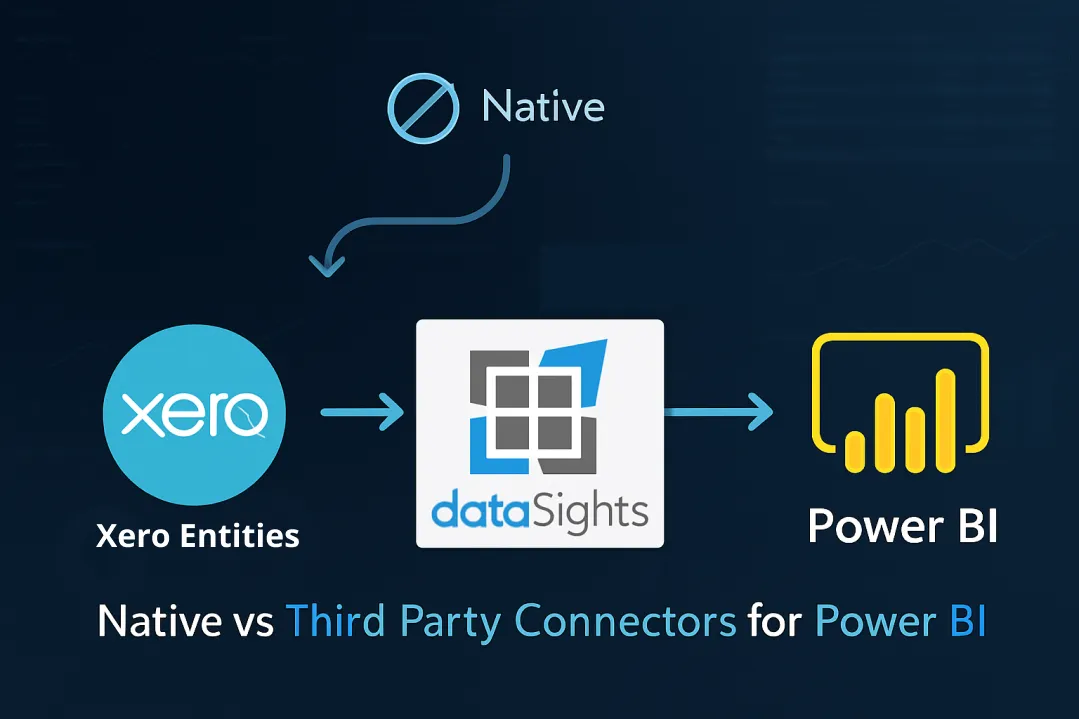
Native vs third party connectors for Xero to Power Bi is the decision finance teams now face. The native content pack has been deprecated, so reliable automation typically means third-party platforms that stage Xero data in SQL before loading to Power BI. These solutions support multi-entity consolidation, intercompany eliminations, and currency conversion while respecting Xero API and Power BI refresh limits. This article explains the trade-offs so you can pick the right approach for your group.
Native vs Third Party Connectors for Xero to Power BI - Which Should You Choose?
The choice between native vs third-party connectors for Xero to Power BI became straightforward: Microsoft deprecated the Xero content pack on 28 May 2019, and Xero has stated the integration is no longer supported as of 8 February 2022. Third-party connectors are therefore the reliable path for automated Xero-to-Power BI reporting. Third-party connectors now provide the only automated path to Power BI, offering SQL-based staging, multi-entity consolidation, and scheduled refreshes that the native connector never supported. Teams using third-party platforms report reducing month-end close from over 15 days to under 5 days.
Ready to Automate Your Financial Consolidation?
Stop wrestling with manual consolidations and broken formulas. dataSights automates multi-entity reporting, Xero consolidations, and Power BI connections. Join 300+ businesses already transforming their financial reporting with our platform, rated 5.0 out of 5 by 77+ verified Xero users.
Table of Contents
Understanding Power BI’s Native Xero Connector Deprecation
Microsoft deprecated Power BI’s native Xero content pack in 2019, following a similar pattern to the QuickBooks connector deprecation in August 2025. The native connector is no longer available in Power BI service’s “Get Data” menu, leaving finance teams without a built-in integration path.
Before it was deprecated, the native connector provided a ready-to-use dashboard designed to simplify financial visibility. It offered a clear snapshot of key business indicators, including:
- Daily cash flow
- Revenue performance
- Expense tracking
- Equity metrics
You could connect by clicking ‘Apps’, finding Xero, selecting ‘Connect’, and authenticating via OAuth2. Once connected, financial data is populated automatically into Power BI’s default dashboard.
Why the Native Connector Was Deprecated
While Microsoft hasn’t specified the exact reasons for the Xero connector deprecation, authentication issues and platform changes are likely to have driven the decision. The QuickBooks deprecation cited problems after Intuit deprecated Internet Explorer 11 support, suggesting similar technical obstacles with Xero’s authentication requirements.
Critical Limitations of the Former Native Connector
Even when functional, Power BI’s native Xero connector imposed restrictions that made it unsuitable for growing businesses:
- Storage Constraints: Power BI’s free tier offered 1GB storage, suitable for only a few Xero organisations at 30-50MB each. Multi-entity businesses quickly exceeded this limit, forcing expensive Power BI Pro upgrades.
- Entity Limits: In shared capacity, Power BI datasets are limited to ~1 GB, which constrains multi-entity histories. Premium/PPU increase limits and unlock larger models.
- Refresh Frequency: Free plans provided nightly refresh only. Every morning, you viewed yesterday’s numbers. Real-time financial visibility required Premium licensing with its associated costs.
- Limited Customisation: The pre-built dashboard locked teams into Microsoft’s report structure. Custom measures, calculated columns, and complex data models weren’t possible within the content pack framework.
- No Multi-Entity Consolidation: The native connector handled single organisations only. Finance teams managing multiple entities resorted to manual Excel consolidation, eliminating any automation benefits.
Third-Party Connectors: Architecture and Advantages
Third-party Xero-to-Power BI connectors address the native solution’s fundamental limitations by staging data in SQL databases before Power BI access. This architecture enables multi-entity consolidation, custom reporting, and automated eliminations that direct API connections cannot achieve.
How Third-Party Connectors Work
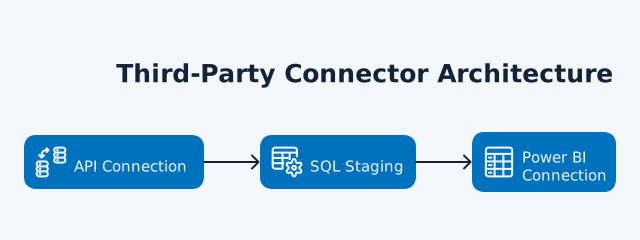
Third-party platforms follow a consistent three-stage architecture:
- API Connection: The platform authenticates with Xero’s API using OAuth2, pulling data from one or multiple organisations on a scheduled basis
- SQL Staging: Data loads into a dedicated SQL database (Azure SQL or customer-hosted), transformed into relational tables with proper foreign keys and relationships
- Power BI Connection: Power BI connects to the SQL database via standard SQL Server connector, treating Xero data like any enterprise database
Microsoft recommends a staging layer (dataflows) to first land and shape data, which reduces load on operational sources and improves performance – far more reliable than stitching multiple API endpoints at query time. Azure’s reference analytics architecture also lands each source into a “staging area” before transformation and modelling, avoiding brittle, slow joins across operational APIs.
Key Advantages of Third-Party Solutions
- Multi-Entity Consolidation: Third-party platforms consolidate data from small and large groups of Xero entities into unified datasets. Our Xero consolidation solution eliminates manual intervention by:
- Automating eliminations
- Multi-currency conversions
- Balancing Trial Balances across all entities.
- Unlimited Custom Reporting: With full SQL database access, you’re no longer restricted to pre-built dashboards. Create custom measures, calculated columns, and complex DAX formulas exactly as needed. The underlying data structure remains visible and editable.
- Automated Refresh Scheduling: Third-party platforms can sync from Xero very frequently, but what you see in Power BI depends on license and mode: Pro supports up to 8 scheduled refreshes/day; PPU/Premium up to 48. For near-real-time needs, DirectQuery tiles refresh about every 15 minutes, with feature trade-offs. Scheduled automation runs behind the scenes without manual intervention.
- Scalable Storage: SQL-based staging eliminates Power BI’s 1GB limitation. Store complete transaction histories, multiple years of data, and unlimited entities without storage constraints or performance degradation.
- DirectQuery Support: Some third-party connectors support DirectQuery mode, querying live data without loading into Power BI’s memory. dataSights’ connector offers DirectQuery for large datasets, avoiding in-memory processing limitations.
Note: DirectQuery imposes restrictions (for example, limited calculated columns and row/visual limits) and can be slower for complex pages.
Comparing Native and Third-Party Connection Methods
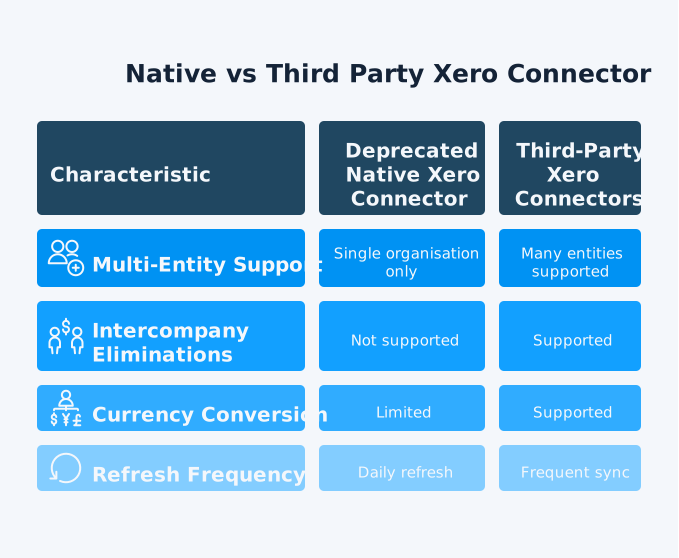
| Feature | Native Connector (Deprecated 2019) | Third-Party Connectors |
| Availability | No longer available | Active and supported |
| Multi-Entity | Single organisation only | Unlimited entities with consolidation |
| Storage Limit | 1GB (free tier) | Unlimited with SQL staging |
| Refresh Frequency | Nightly (free tier) | Every 5 minutes to hourly (Actual sync cadence must respect Xero’s API limits (60 calls/minute, 5,000/day per org) and your Power BI refresh mode) |
| Custom Reports | Pre-built dashboard only | Full customisation with SQL access |
| Eliminations | Not supported | Automated intercompany eliminations |
| DirectQuery | Not available | Supported by some providers |
| Cost | Free to expensive (Pro/Premium) | Subscription-based, varies by features |
Setting Up Third-Party Xero to Power BI Connections
Third-party connection setup follows similar patterns across platforms, typically completing in under 10 minutes for experienced users.
Connection Process Overview
Step 1: Platform Authentication
Create an account with your chosen third-party provider. Most offer free trials of 7 to 14 days, with no credit card required.
Step 2: Xero Authorisation
Connect your Xero organisation(s) through OAuth2 authentication. Select which entities to include if managing multiple organisations. The platform requests read-only access to your financial data via the API.
Step 3: Data Configuration
Choose which Xero datasets to sync:
- Balance sheet
- Profit & loss
- Bank transactions
- Invoices
- Contacts
- Full Trial Balance.
Configure date ranges, tracking categories, and any data transformations needed.
Step 4: Sync Schedule
Set refresh frequency based on your reporting needs. Options typically range from 5-minute intervals to daily syncs. More frequent refreshes consume more API calls and may hit Xero’s rate limits.
Step 5: SQL Database Access
The platform provisions your SQL database and provides connection credentials. Note the server name, database name, username, and password for Power BI configuration.
Step 6: Power BI Connection
In Power BI Desktop, select Get Data > SQL Server Database. Enter your database credentials. The platform’s tables appear as standard SQL tables in Power BI’s navigator.
Step 7: Report Building
Build Power BI reports using your Xero data exactly as you would with any SQL database. Create relationships, write DAX measures, and design visualisations without restrictions.
Step 8: Publishing and Gateway Setup
Publish reports to Power BI Service. Configure the on-premises data gateway if required by your connector. Some third-party solutions offer gateway-free cloud connectivity.
dataSights Xero to Power BI Integration
Our Xero to Power BI connector automates the entire setup process. Connect multiple Xero entities, schedule automatic refreshes, and access consolidated Trial Balances in Power BI without CSV exports or manual data manipulation.
dataSights delivers pre-formatted Management Reports through our web platform, with Excel and Power BI automation available for teams preferring those workflows. Automated eliminations, multi-currency handling, and balanced consolidations work out of the box.
Positioning note: dataSights’ Management Reports are the primary output; Excel automation and Power BI integration are additional options for teams that prefer those workflows.
Multi-Entity Consolidation with Third-Party Connectors
Multi-entity consolidation represents the critical use case where third-party connectors outperform every manual alternative. Finance teams managing multiple companies in Xero face manual consolidation processes that consume 10-15 hours per month.
Consolidation Architecture
Third-party platforms handle multi-entity consolidation through database-level operations:
- Entity Tagging: Each transaction includes an “entity” or “organisation” column identifying its source Xero file. This tagging enables filtering, grouping, and entity-specific analysis within unified reports.
- Chart of Accounts Mapping: Platforms map disparate charts of accounts across entities to a unified group structure. Account codes differ between entities, but consolidated reports present harmonised categories.
- Automated Eliminations: Intercompany transactions eliminate automatically based on configured rules. The platform identifies matching transactions across entities and creates elimination entries with full audit trails.
- Currency Conversion: Multi-currency entities convert to reporting currency automatically. Historical rates apply to balance sheet items, average rates to profit & loss, maintaining IFRS compliance.
Consolidation Performance Metrics
Our clients report significant time savings through automated consolidation:
- Manual baseline: 10-15 days for month-end close with Excel-based consolidation
- Automated performance: Under 5 days with third-party platforms handling data aggregation
- Processing speed: Teams consolidating dozens of entities report near-instant group refresh once data syncs are complete
- Error reduction: Eliminations balance automatically, preventing the “consolidation won’t balance” problem
These metrics come from our 250+ business clients and 77+ five-star Xero Marketplace reviews, representing real-world finance team experiences.
API Rate Limits and Connection Optimisation
Xero’s API imposes rate limits that affect both direct connections and third-party platforms. Understanding these limits prevents failed syncs and optimisation errors.
Xero API Rate Limit Structure
Xero’s API enforces multiple rate limit tiers:
- Per-minute limits: 60 API calls per minute maximum to the same organisation. This limit resets every minute, so platforms space requests to avoid throttling.
- Daily Limits: 5,000 API calls per day for certified applications. Uncertified applications face stricter limits. Heavy users with large transaction volumes may approach these limits during full syncs.
- Connection Limits: Uncertified OAuth applications support 25 connections maximum. Certified applications (like established third-party platforms) have no connection limit.
How Third-Party Platforms Handle Rate Limits
Quality third-party connectors implement throttling logic that respects Xero’s limits:
- Intelligent Spacing: Platforms delay requests when approaching rate limits, using Xero’s recommended delay times to avoid quota exhaustion.
- Incremental Sync: After initial full sync, platforms pull only changed records. This incremental approach dramatically reduces API call consumption for daily refreshes.
- Call Prioritisation: Critical tables (Trial Balance, invoices, bank transactions) sync first. Less critical data (contacts, tracking categories) syncs afterwards if API quota allows.
- Retry Logic: When hitting limits, platforms queue requests for retry rather than failing. Your data eventually syncs automatically.
Avoiding Rate Limit Issues
Finance teams can minimise rate limit problems through smart configuration:
- Schedule full syncs during off-peak hours when API quota availability is highest
- Use incremental sync for daily refreshes rather than pulling complete datasets
- Avoid history tables and detailed reports that trigger individual API calls per transaction
- Configure appropriate refresh frequencies based on your actual needs (hourly may be unnecessary for monthly reporting)
DirectQuery vs Import Mode for Xero Data
Power BI offers two data connectivity modes, each with distinct advantages for Xero integration through third-party connectors.
Import Mode Characteristics
Import mode loads Xero data into Power BI’s in-memory engine. This approach offers:
- Performance Advantages: Queries run instantly since data resides in memory. Complex DAX calculations, multiple relationships, and large visual sets all benefit from in-memory speed.
- Offline Access: Once imported, reports work without active database connections. Sales teams can view dashboards on flights or in locations without internet.
- Refresh Control: You control refresh timing explicitly – schedule updates during low-usage periods to minimise performance impact on production systems.
- Size Limitations: Power BI Pro enforces 1GB dataset size limits. Large Xero histories or multi-entity consolidations may exceed this threshold, requiring Premium capacity.
DirectQuery Mode Characteristics
DirectQuery queries the SQL database live, without loading data into Power BI. This mode provides:
- Always-Current Data: Every visual refresh queries live data. Financial dashboards reflect transactions posted seconds ago without scheduled refresh delays.
- No Size Limits: DirectQuery bypasses Power BI’s storage limits entirely. Query terabytes of historical data without consuming workspace capacity.
- Performance Trade-offs: Queries run slower than Import mode since each visual queries the database separately. Complex reports with multiple visuals may feel sluggish.
- Reduced Functionality: DirectQuery restricts certain DAX functions and calculated columns. Not all Power BI features work in DirectQuery mode.
Choosing the Right Mode
Most finance teams use Import mode for Xero reporting. Financial data volumes rarely exceed 1GB, even with multiple entities and several years of history. Import mode’s performance advantages and full feature support outweigh DirectQuery’s real-time benefits for month-end workflows.
Consider DirectQuery when:
- Managing 50+ entities with complete transaction histories
- Requiring absolute real-time data for operational dashboards
- Working in Power BI Premium with large dataset support
- Building reports with simple visuals that perform well with live queries
Power BI Gateway Configuration for Xero Connectors
On-premises data gateways enable Power BI Service to connect to your SQL-staged Xero data for automated refresh. Gateway setup requires one-time configuration on a local Windows machine.
When Gateways Are Required
Gateways bridge Power BI Service (cloud) with SQL databases that aren’t directly internet-accessible:
- Customer-hosted SQL databases behind corporate firewalls
- Azure SQL databases with IP whitelisting or private endpoints
- Custom connectors not supported natively by Power BI Service
Some third-party platforms offer gateway-free cloud connectivity through their own infrastructure, eliminating this setup requirement entirely.
Gateway Installation Steps
- Download and Install: Download the on-premises data gateway from Microsoft’s website. Install on a Windows machine that stays powered on continuously and maintains internet connectivity.
- Gateway Registration: Sign in with your Power BI account and register the gateway. Provide a name identifying its purpose (e.g., “Xero Finance Gateway”).
- Custom Connector Support: If using custom connectors, enable custom connector loading in gateway settings. Copy the custom connector file (.pqx) to the gateway’s custom connector folder.
- Credentials Configuration: Add SQL database connection credentials in the gateway. These encrypted credentials enable Power BI Service to authenticate without exposing passwords in reports.
- Network Access: Ensure the gateway machine can reach your SQL database – test connectivity using SQL Server Management Studio or command-line tools before gateway configuration.
Gateway Refresh Scheduling
After gateway configuration, schedule dataset refreshes in Power BI Service:
- Navigate to your published dataset’s settings
- Select “Scheduled refresh” section
- Configure refresh frequency (maximum 8 times daily for Pro, up to 48 times for Premium)
- Set time windows for refresh operations
- Enable failure notifications to alert you of sync problems
Properly configured gateways refresh automatically without manual intervention, keeping Power BI reports up to date with your latest Xero transactions.
Cost Comparison: Native vs Third-Party Solutions
Understanding the total cost of ownership helps finance teams evaluate third-party Xero connectors against manual alternatives.
Power BI Licensing Costs
- Power BI Free ($0 per user/month): View personal content in My Workspace; sharing/collaboration requires Pro or PPU.
- Power BI Pro ($14 per user/month (billed annually): Enables publishing, sharing, and collaboration; supports up to 8 scheduled refreshes/day on shared capacity.
- Power BI Premium Per User (PPU) ($24 per user/month (billed annually): Includes all Pro capabilities, adds most Premium features (e.g., paginated reports, deployment pipelines), and supports up to 48 scheduled refreshes/day. Large semantic model storage format allows models to exceed the default 1-GB limit when hosted on Premium/PPU/Fabric capacities.
Note: Prices reflect Microsoft’s global increase effective April 1, 2025 (applies at purchase/renewal).
Third-Party Connector Pricing Models
Connector pricing varies by features, entities, and refresh frequency:
- Per-organisation subscription (most common): Typically a monthly fee per Xero organisation, with options to include payroll and account-transactions detail and to add non-Xero sources.
dataSights example: Calculator shows $60/month for 1 company and 1 data source (USD). Pricing scales with more companies and sources. - Per-organisation + higher-touch “managed” tier: Adds premium support, monitoring, hosted database, caching/snapshots, and advanced integrations.
dataSights example: A managed plan block on the pricing page shows $175/month (USD) for a 1-company starting point, with inclusions like 24/7 monitoring, priority support, hosted Microsoft cloud database, and caching. - Fixed-price connector build (for new sources): One-off fee when you need a brand-new connector that isn’t already in the catalogue.
dataSights example: Fixed price of $500 USD for every new Connector built - Sync-frequency options: Plans often differentiate daily vs. near-real-time syncing and may charge more for higher frequency due to API and capacity costs.
dataSights page cues: The calculator exposes Daily and Real-time options under “Sync Frequency.” Price varies with selection
Hidden Costs of Manual Alternatives
Manual Xero to Power BI connections incur costs beyond subscription fees:
- Development Time: Building custom API connections requires developer expertise. Budget 40-80 hours for initial development, plus ongoing maintenance as Xero’s API evolves.
- Finance Team Labour: Manual consolidation consumes 10-15 hours monthly for teams managing multiple entities. At CFO/Controller rates, this labour cost exceeds the cost of most connector subscriptions.
- Error Remediation: Manual processes introduce errors requiring investigation and correction. Time spent tracking down consolidation discrepancies adds hidden costs.
- Opportunity Cost: Finance teams performing manual data tasks can’t focus on analysis and strategy. Third-party automation frees capacity for higher-value work.
When calculating total cost, include all labour, opportunity, and remediation costs, as well as subscription fees. Most teams find automated solutions cheaper than manual alternatives despite upfront pricing appearing higher.
Security and Compliance Considerations
Connecting financial data from Xero to Power BI through third-party platforms requires careful evaluation of security practices and compliance requirements.
Data Security Fundamentals
- OAuth2 Authentication: Quality third-party connectors use OAuth2 for Xero authentication, never requesting or storing your Xero username and password. OAuth2 tokens can be revoked at any time through Xero’s connected apps management.
- Encryption in Transit: All data transfers between Xero, the third-party platform, and Power BI should use TLS encryption. Verify that platforms enforce HTTPS for all connections.
- Encryption at Rest: SQL databases storing your Xero data should use encryption at rest. Azure SQL databases support transparent data encryption (TDE) by default.
- Access Controls: Third-party platforms should offer role-based access control. Finance team members should see only relevant entities and data fields based on their roles.
Compliance Requirements
- GDPR Compliance: European businesses must verify third-party platforms comply with GDPR data protection requirements. Check for EU data centre options if data residency is a concern.
- SOC 2 Certification: Enterprise teams should request SOC 2 Type II reports that demonstrate the effectiveness of security controls. This certification confirms platforms maintain appropriate security practices.
- Data Retention Policies: Understand how long third-party platforms retain your Xero data and what happens after your subscription is cancelled. Can you export complete datasets? Is data deleted or archived?
- Audit Trail Requirements: For businesses under regulatory scrutiny, verify that platforms maintain complete audit logs showing who accessed data and when changes occurred.
dataSights Security Standards
Our platform maintains enterprise-grade security with dedicated per-customer SQL databases, SOC 2 Type II certification, and UK/EU data centre options. All eliminations, adjustments, and data transformations include full audit trails meeting regulatory requirements.
Troubleshooting Common Connection Issues
Even with third-party platforms, connection problems occasionally arise. These troubleshooting steps resolve the most common issues.
Authentication Failures
- OAuth Token Expiration: Xero OAuth tokens expire periodically. If refreshes suddenly fail, re-authenticate through the third-party platform’s connection settings.
- Insufficient Permissions: Verify your Xero user account has “Standard” or “Adviser” role with financial reporting access. “Invoice Only” users can’t access full financial data through APIs.
- Multiple Xero Accounts: Ensure you’re authenticating with the correct Xero account. Using a personal Xero account when you need business account access causes authentication errors.
Data Sync Problems
- API Rate Limit Hits: If syncs fail with rate limit errors, reduce refresh frequency or schedule syncs during off-peak hours when fewer users access Xero.
- Large Dataset Timeouts: Initial syncs of organisations with years of transactions may timeout. Third-party platforms should implement chunked syncing to handle large datasets.
- Missing Tables or Fields: Verify you’ve enabled all required Xero datasets in platform settings. Some platforms default to minimal table selection, requiring manual enablement for advanced features.
Power BI Refresh Failures
- Gateway Connectivity: If gateway refreshes fail, verify that the gateway machine maintains internet connectivity and can reach your SQL database. Firewall changes often break working configurations.
- Credential Expiration: SQL database credentials configured in Power BI Service may expire. Update credentials through dataset settings if refresh fails with authentication errors.
- Timeout Errors: Large Power BI datasets may timeout during refresh. Break reports into smaller datasets or switch to DirectQuery mode for massive Xero histories.
Performance Degradation
- Slow Query Response: DirectQuery reports running slowly indicate SQL database performance problems. Verify the database has appropriate compute resources and proper indexing.
- Memory Errors in Import Mode: “Out of memory” errors suggest your dataset approaches Power BI’s capacity limits. Reduce date ranges, remove unused columns, or upgrade to Premium capacity.
- Visual Rendering Delays: Complex visuals with millions of data points render slowly. Simplify visuals, add report-level filters, or pre-aggregate data in SQL before Power BI import.
Frequently Asked Questions
Is Power BI's Native Xero Connector Still Available?
No, Power BI’s native Xero content pack was deprecated in 2025 and is no longer available in Power BI Service. Finance teams must now use third-party connectors or build custom API connections to integrate Xero data with Power BI.
How Much Do Third-Party Xero to Power BI Connectors Cost?
Third-party connector pricing varies significantly by features and entity count. Basic solutions start at around £50-100 per month for single entities with limited refreshes. Enterprise solutions supporting unlimited entities with real-time sync range from £200 to £500 monthly. When comparing costs, include the labour saved through automation – typically 10-15 hours per month for multi-entity consolidation.
Can Third-Party Connectors Handle Multiple Xero Organisations?
Yes, quality third-party connectors consolidate data from small and large groups of Xero entities into unified Power BI reports. Platforms tag transactions by source entity, enable automated eliminations, and handle multi-currency conversions. dataSights consolidates 72+ entities with automated eliminations and balanced Trial Balances.
How Often Can Third-Party Connectors Refresh Xero Data?
Refresh frequency depends on your chosen platform and Xero plan. Most third-party solutions offer 5-minute to hourly refresh intervals, far exceeding the native connector’s nightly refresh. Actual frequency may be limited by Xero’s API rate limits (60 calls per minute, 5000 daily for certified apps).
Do I Need Power BI Premium for Third-Party Xero Connectors?
No, Power BI Pro suffices for most Xero reporting needs – third-party connectors stage data in SQL databases, bypassing Power BI’s 1GB limitation. Premium becomes necessary only when managing 50+ entities with complete transaction histories or requiring more than 8 daily refreshes.
Can I Use DirectQuery With Xero Data Through Third-Party Connectors?
Some third-party connectors support DirectQuery mode, allowing Power BI to query live Xero data without loading it into memory. However, most finance teams use Import mode since Xero data volumes rarely justify DirectQuery’s trade-offs. Import mode offers better performance and full Power BI feature support.
What Happens to My Xero Data If I Cancel a Third-Party Connector Subscription?
Data handling after cancellation varies by platform. Some allow full dataset export before deletion, while others immediately terminate database access. Review data retention policies before committing to any platform. Enterprise teams should negotiate contractual terms guaranteeing data export rights.
Do Third-Party Connectors Work With Xero Practice Manager or Xero Projects?
Most third-party Xero connectors focus on core accounting data (Trial Balance, invoices, bank transactions). Xero Practice Manager and Xero Projects require separate API connections. Verify platform documentation confirms support for these additional Xero products before purchase.
How Do Third-Party Connectors Handle Xero Tracking Categories?
Quality connectors sync tracking categories as dimensional tables in Power BI, enabling drill-down analysis by department, project, or custom category. Tracking category data flows through to consolidated reports, maintaining organisational analysis across multiple entities.
Can I Build Custom Dashboards With Third-Party Xero Connectors?
Yes, third-party connectors provide full SQL database access, enabling unlimited custom reporting. Create custom DAX measures, calculated columns, and complex data models exactly as needed. This flexibility represents a major advantage over the native connector’s pre-built dashboard restrictions.
Making the Right Choice for Your Finance Team
Native options are no longer viable for dependable Xero-to-Power BI reporting at scale. SQL-backed third-party connectors deliver automation, auditability, and performance across multiple organisations and currencies. With dataSights, finance teams handle consolidation, eliminations, and scheduled refresh in one place – without manual month-end workarounds. Request a free trial.
Transform Your Xero Reporting with Automated Power BI Integration
Stop wrestling with deprecated connectors and manual consolidations. dataSights automates Xero to Power BI connections with multi-entity consolidation, automated eliminations, and Trial Balances that always balance – rated 5.0 out of 5 by 77+ verified Xero users. Join 300+ businesses already transforming their financial reporting with our platform.
About the Author
Kevin Wiegand
Founder & Client happiness
I’m Kevin Wiegand, and with over 25 years of experience in software development and financial data automation, I’ve honed my skills and knowledge in building enterprise-grade solutions for complex consolidation and reporting challenges. My journey includes developing custom solutions for data teams at Gazprom Marketing & Trading and E.ON, before founding dataSights in 2016. Today, dataSights helps over 250 businesses achieve 100% report automation. I’m passionate about sharing my expertise to help CFOs and Financial Controllers reduce their month-end close time and eliminate the manual Excel exports that drain their teams’ valuable time.