
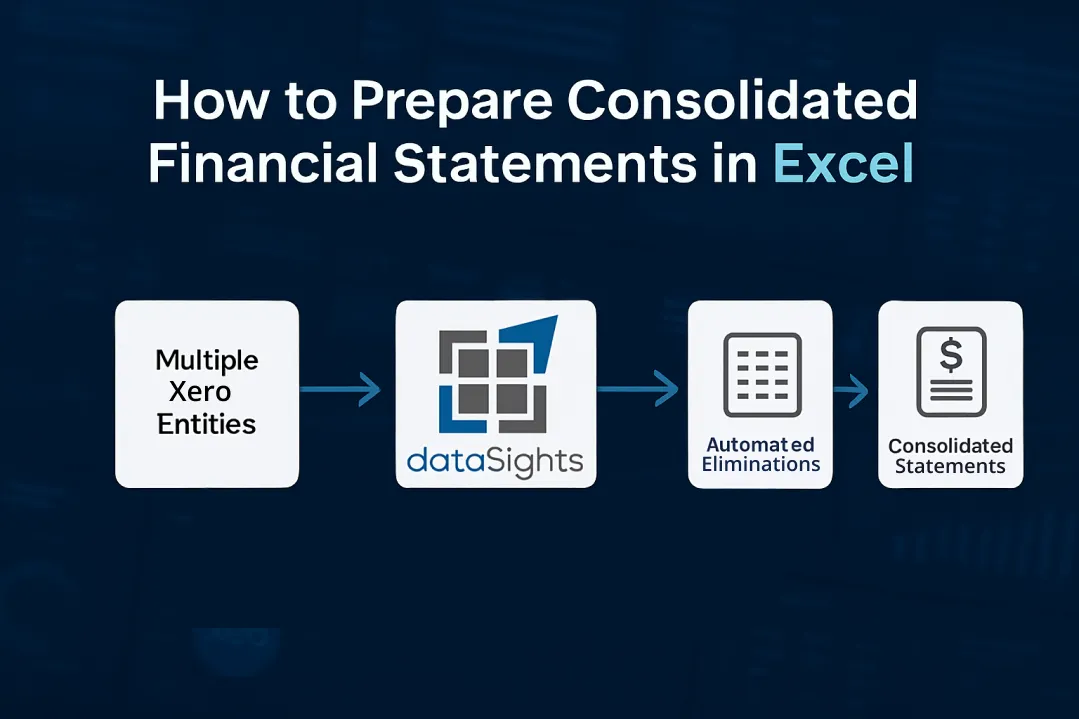
Does your month-end close feel like a never-ending battle with spreadsheets, manual exports, and formula errors? For CFOs and Financial Controllers managing multiple entities, learning how to prepare consolidated financial statements in Excel is essential but the manual process often consumes days of valuable time each month. The good news is that mastering this process properly can significantly reduce errors and cut your close cycle in half. This guide walks you through the complete workflow, from initial data gathering through intercompany eliminations to final validated reports, while highlighting where automation delivers real value. Whether you manage a handful of entities or a complex group structure, you’ll find practical steps to improve your consolidation workflow.
How to Prepare Consolidated Financial Statements in Excel
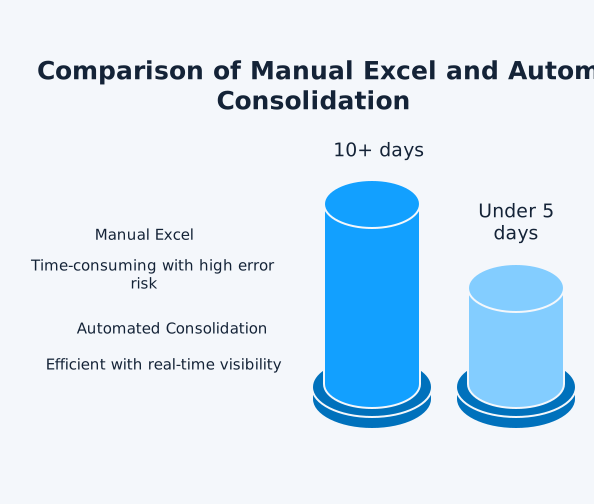
Preparing consolidated financial statements in Excel requires gathering Trial Balances from all entities, mapping accounts to a standardised chart, performing intercompany eliminations, and combining the data into unified P&L, Balance Sheet, and Cash Flow statements. Research indicates that, across the reviewed samples, 94% of spreadsheets contain errors, making accuracy validation critical at each step. For multi-entity groups using Xero, manual consolidation typically takes 15+ days. Proper automation with tools like dataSights’ Xero consolidation solution reduces this to under 5 days.
Ready to Automate Your Financial Consolidation?
Stop wrestling with manual consolidations and broken formulas. dataSights automates multi-entity reporting, Xero consolidations, and Power BI connections. Join 300+ businesses already transforming their financial reporting with our platform, rated 5.0 out of 5 by 90+ verified Xero users.
Table of Contents
Understanding Consolidated Financial Statements
Before diving into the Excel process, it is essential to understand what consolidated financial statements represent and why they matter.
Consolidation is driven by control, not only shareholding percentage. Under IFRS, an investor controls an investee when it has power over relevant activities, exposure (or rights) to variable returns, and the ability to use power to affect returns.
What Are Consolidated Financial Statements?
Consolidated financial statements combine the financial data of a parent company and its subsidiaries into a single set of reports. These statements present the group’s overall financial position as if all entities operated as one economic unit.
A complete consolidated financial statement set typically includes the following:
- Statement of financial position (balance sheet)
- Statement of profit or loss and other comprehensive income
- Statement of changes in equity
- Statement of cash flows
- Notes to the financial statements
For groups operating multiple Xero organisations, this means extracting data from each entity and combining it while eliminating intercompany transactions. Without proper consolidation processes, you risk double-counting revenue, overstating assets, and presenting misleading financial positions to stakeholders.
Why Excel Remains Popular for Consolidation
Despite its limitations, Excel remains the tool of choice for many finance teams preparing consolidated statements. The reasons are straightforward: familiarity, flexibility, and low upfront cost. Most accountants learned Excel early in their careers and can build customised consolidation workbooks tailored to their specific needs.
However, this familiarity comes with significant risks. Recent research reviewing 35 years of studies found that about 94% of business spreadsheets used for decision‑making contain faults, making systematic accuracy checks critical at every step of the process. For consolidated financial statements, even small errors can cascade into material misstatements.
Step-by-Step Excel Consolidation Process
The following seven steps outline a systematic approach to preparing consolidated financial statements in Excel. Each step builds upon the previous one, creating a logical workflow that helps maintain accuracy throughout the consolidation process.
Step 1: Gather Financial Data from All Entities
The consolidation process begins with collecting complete financial data from each subsidiary or division. For Xero users, this means exporting Trial Balances, P&L reports, and Balance Sheets from each organisation.
Your data gathering checklist should include:
- Trial Balances for all entities covering the same reporting period
- Income statements with consistent account structures across entities
- Balance Sheets with matching reporting dates
- Details of all intercompany transactions including loans, sales, and balances
For groups with multiple Xero organisations, Xero’s standard reports provide entity-level data but offer no native consolidation functionality. Each organisation operates independently, requiring manual export and combination of data.
Step 2: Set Up Your Excel Consolidation Workbook
Create a structured Excel workbook with dedicated tabs for each component. Your recommended workbook structure should include:
- Summary Dashboard for consolidated results at a glance
- Separate tabs for each entity’s source data (Entity A Data, Entity B Data, and so on)
- Chart of Accounts Mapping sheet for standardised account codes
- Eliminations tab for intercompany entries and adjustments
- Consolidated P&L output tab
- Consolidated Balance Sheet output tab
- Consolidated Cash Flow output tab
- Consolidated Trial Balance output tab
The Trial Balance serves as the foundation for accurate consolidation. As noted in the dataSights consolidation elimination guide, all automated consolidations must reconcile back to entity-level Trial Balances to ensure accuracy.
Before you aggregate balances, confirm that entities apply consistent accounting policies to like transactions (or post-consolidation adjustments). Without this, Excel will combine numbers that aren’t comparable.
Step 3: Map Accounts to a Standardised Chart of Accounts
Different entities often use varying account codes and naming conventions. Before consolidating, you must map each entity’s accounts to a standardised group chart of accounts.
Create a mapping table that shows the entity account code and name, group account code and name, and account type (Asset, Liability, Equity, Revenue, Expense). Use Excel VLOOKUP or INDEX-MATCH formulas to translate entity-level data into group-level accounts automatically.
For example, if Entity A uses account code 4100 for Sales Revenue and Entity B uses 5001 for the same purpose, both should map to a single group account code such as 40100 for Consolidated Sales Revenue.
Step 4: Perform Intercompany Eliminations
Intercompany eliminations represent the most complex and error-prone aspect of Excel-based consolidation. You must identify and remove inter-group transactions to avoid double-counting.
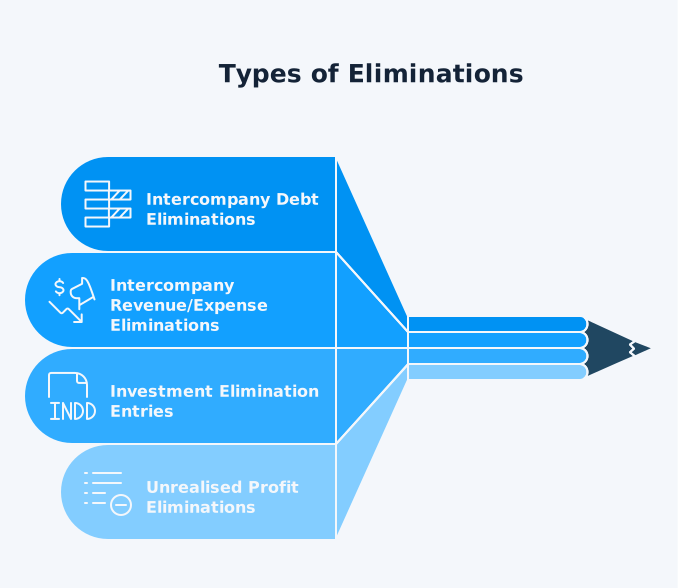
The types of eliminations include:
- Intercompany debt eliminations for loans and balances between entities
- Intercompany revenue and expense eliminations for sales of goods or services between group members
- Investment elimination entries to offset the parent’s investment against the subsidiary’s equity (with goodwill and NCI recognised where applicable)
- Unrealised profit eliminations for intra-group inventory or asset transfers not yet sold to external parties
If the group has non-controlling interests (NCI), document whether profits arise from upstream or downstream transactions, as attribution can differ after eliminations.
- Intercompany Debt Elimination Example: If Parent Co lent £500,000 to Subsidiary A at 5% annual interest, you need to eliminate the loan receivable on Parent Co’s Balance Sheet against the loan payable on Subsidiary A’s Balance Sheet. Both the £500,000 loan balance and the £25,000 interest income/expense must be eliminated because no cash has entered or left the group.
- Intercompany Revenue Elimination Example: If Entity A sells services to Entity B for £100,000, on consolidation both the £100,000 revenue in Entity A and the £100,000 expense in Entity B are eliminated. The group has not earned anything from itself.
Create an Eliminations worksheet in your Excel workbook with columns for elimination reference, description, debit account, debit amount, credit account, credit amount, and supporting documentation. Each elimination entry should balance (debits equal credits) and be traceable to source transactions.
Step 5: Handle Multi-Currency Translation
For international groups, currency translation adds another layer of complexity. Under IAS 21, different exchange rates apply to different elements.
Assets and liabilities translate at the closing rate at Balance Sheet date. Income and expenses are commonly translated using average rates (where appropriate), while translation differences are recognised in other comprehensive income (OCI) and accumulated in equity (e.g., a foreign currency translation reserve) until disposal.
In Excel, create a Rates table with closing rates, average rates, and historical rates for each currency. Apply these rates systematically using formulas that reference the appropriate rate for each account type.
Step 6: Build Consolidated Statements
With mapped data and eliminations complete, build your consolidated statements by combining entity data and subtracting eliminations.
Consolidated P&L Formula Structure:
= SUM(Entity_A_Revenue, Entity_B_Revenue, Entity_C_Revenue) – Elimination_Adjustments
Consolidated Balance Sheet Formula Structure:
= SUM(Entity_A_Assets, Entity_B_Assets, Entity_C_Assets) – Elimination_Adjustments
Ensure your consolidated Balance Sheet balances (Total Assets = Total Liabilities plus Equity) and that consolidated retained earnings reconcile with the Consolidated P&L net income movement.
Step 7: Validate and Reconcile
Before finalising your consolidated statements, perform comprehensive validation checks. Verify that the consolidated Trial Balance has total debits equalling total credits. Confirm that the Balance Sheet balances. Ensure that consolidated net income flows correctly to retained earnings. Check that intercompany balances net to zero after eliminations. Validate that all source data ties back to entity systems.
Here’s a demonstration of how dataSights helps finance teams automate Excel properly. This walkthrough covers downloading customisable management reports via the Office AddIn, using Power Query to pull consolidated data with one click, and posting journals back to multiple Xero entities simultaneously. You will also see how the underlying dedicated cloud database eliminates CSV exports and keeps your consolidation balanced.
Common Excel Consolidation Challenges
Even with careful planning and execution, Excel-based consolidation presents inherent challenges that finance teams must navigate. Understanding these challenges helps you implement appropriate controls and recognise when manual processes no longer serve your organisation’s needs.
1. The Error Problem
For consolidated financial statements, common error sources include:
- Formula errors from broken links or incorrect cell references
- Copy-paste mistakes where data is pasted to the wrong locations or omitted entirely
- Version control issues where team members work on different file versions
- Elimination errors from unmatched intercompany transactions or missing adjustments
- Currency conversion mistakes from applying the wrong exchange rates
According to research, accounting errors and manual financial reporting cost US businesses approximately $7.8 billion annually. Even seemingly small mistakes in transposed numbers or missing decimal points can cascade into material misstatements.
2. Scalability Limitations
Excel-based consolidation becomes increasingly problematic as entity counts grow. According to dataSights’ financial consolidation reporting guide, most finance teams find Excel inadequate beyond 3-4 entities due to elimination complexity and audit trail requirements.
The challenges compound with scale because ten entities might have 45 potential intercompany pairs while twenty entities could have 190 potential pairs. Each additional entity increases formula complexity and error risk. Manual reconciliation time grows exponentially, and audit trail documentation becomes unmanageable.
3. Audit Trail Deficiencies
Excel lacks built-in audit trail functionality essential for financial reporting compliance. When auditors ask “who changed this number and when?”, Excel cannot provide definitive answers. This deficiency creates particular challenges for IFRS and GAAP compliance, external audit requirements, internal control documentation, and board and stakeholder reporting.
Modern consolidation requires system-level audit logs showing who made changes, what changed, and when. Excel’s track changes feature is insufficient for enterprise-grade financial reporting requirements.
Best Practices for Excel Consolidation
Implementing structured processes and controls can significantly reduce errors and improve efficiency in your Excel consolidation workflow. The following practices help finance teams maintain accuracy while working within Excel’s limitations.
1. Establish Consistent Processes
Document your consolidation procedures in detail. Create step-by-step checklists that ensure consistent execution regardless of who performs the consolidation. Your documentation should include:
- Data extraction procedures for each entity and source system
- Account mapping rules for standardising codes across the group
- Elimination entry protocols for intercompany transactions
- Validation checkpoints at each stage of the consolidation process
- Sign-off requirements with designated approvers and deadlines
2. Use Named Ranges and Tables
Replace cell references with named ranges to make formulas more readable and reduce errors. For example:
= SUM(Entity_A_Revenue) – Intercompany_Revenue_Elimination
Is clearer than:
= SUM(Sheet2!B5:B50) – Sheet5!D12
3. Implement Version Control
Establish strict version control procedures. Save consolidation workbooks with clear naming conventions that include dates and version numbers, such as “Group_Consolidation_2024_Q4_v3.xlsx”. Maintain a master copy with restricted access and keep backup copies of each period’s final version.
4. Build Reconciliation Checks
Incorporate automatic reconciliation checks throughout your workbook. Use conditional formatting to highlight when Balance Sheet does not balance, intercompany eliminations do not net to zero, or source data totals do not match Trial Balances.
When Manual Excel Falls Short
While Excel can technically consolidate smaller groups, the manual approach has inherent limitations that become critical as organisations grow.
Time Investment
Close timelines vary widely, but manual multi-entity consolidation often takes several days to multiple weeks, depending on entity count, intercompany volume, and review requirements. This time differential represents a significant operational burden, particularly during busy reporting periods.
For finance teams preparing monthly management reports and quarterly external reports, spending two weeks on consolidation each period means operating in a perpetual catch-up mode rather than providing strategic analysis.
Error Risk Amplification
As entity counts and transaction volumes increase, error risk grows exponentially. What starts as a manageable 3-entity consolidation becomes a nightmare at 10 entities, with hundreds of intercompany relationships to track and eliminate.
As entity counts and transaction volumes increase, the time spent on error chasing, reconciliations, and audit support rises sharply – especially when multiple versions of spreadsheets circulate.
Lack of Real-Time Visibility
Excel consolidation operates on a period-end basis. You cannot see consolidated positions until someone manually runs the process. This limitation prevents proactive management and means issues surface days or weeks after they occur rather than in real-time.
The Automation Alternative
When Excel-based consolidation becomes unsustainable, automation provides a path forward that addresses the fundamental limitations of manual processes. Understanding what automated solutions deliver helps finance teams make informed decisions about their consolidation approach.
What Automated Consolidation Delivers
Modern financial consolidation software addresses the fundamental limitations of Excel-based processes. Automated solutions provide direct system integration where data flows automatically from source systems without manual exports. Pre-configured elimination rules identify and process intercompany transactions systematically. Real-time processing enables continuous consolidation rather than period-end only. Complete audit trails document every adjustment with a timestamp and user identification. Multi-currency handling applies correct exchange rates automatically based on transaction type.
How dataSights Transforms Xero Consolidation
For organisations using Xero, dataSights’ consolidation solution bridges the gap between Xero’s entity-level reporting and true multi-entity consolidation.
- The platform delivers pre-formatted management packs with consolidated P&L, Balance Sheet, Trial Balance, and KPI metrics through a web platform.
- dataSights syncs data from multiple Xero organisations via API into a centralised cloud database, then delivers management packs (web) and optional Excel/Power BI outputs.
- For teams preferring Excel, the dataSights OfficeAddIn and Power Query enable automated data refresh directly in Excel without CSV exports.
- For advanced analytics requirements, Power BI connects directly to consolidated data for interactive dashboards.
Teams using dataSights typically reduce month-end close from over 15 days to under 5 days while maintaining complete audit trails that external auditors can review directly.
Practical Implementation Considerations
The decision between manual Excel and automated consolidation depends on several factors. Manual Excel may be sufficient for 2-3 simple entities with minimal intercompany activity, stable group structures, and limited compliance requirements. Automated solutions become essential for four or more entities, complex intercompany relationships, multi-currency operations, external audit requirements, and monthly management reporting needs.
Frequently Asked Questions
Can Excel Handle Consolidation for Large Groups?
Excel can technically consolidate any number of entities, but practical limitations emerge beyond 3-4 entities. The formula complexity, intercompany relationship tracking, and manual reconciliation requirements become unmanageable. Most finance teams find that automation delivers significant time savings and error reduction once entity counts exceed four.
What Is the Most Error-Prone Step in Excel Consolidation?
Intercompany eliminations consistently cause the most errors in manual consolidation. Identifying all intercompany transactions, ensuring both sides of each transaction are captured, and maintaining elimination entries across periods requires meticulous attention. Missing or incorrect eliminations directly impact consolidated profit, assets, and equity figures.
How Long Should Manual Consolidation Take?
Time requirements vary significantly based on entity count, transaction volume, and intercompany complexity. Research indicates bottom-quartile performers take 10 or more days while top performers complete consolidation in under 5 days. Automated solutions can reduce processing time to minutes (once configured and synced), but overall close time still depends on approvals, eliminations review, and reconciliations.
Do I Need Special Excel Skills for Consolidation?
Basic Excel proficiency is sufficient for simple consolidations. However, complex multi-entity consolidation benefits from advanced skills including SUMIFS, INDEX-MATCH, pivot tables, and Power Query. Understanding accounting principles for eliminations and currency translation is equally important.
How Often Should We Consolidate?
Most organisations consolidate monthly for management reporting and quarterly for external requirements. Real-time consolidation through automation enables continuous monitoring, surfacing issues daily rather than discovering them weeks after month-end.
What Accounting Standards Govern Consolidation?
How Do I Handle Different Year-Ends Across Entities?
IFRS permits up to a three-month difference between parent and subsidiary reporting dates when alignment is impracticable. Adjustments must be made for significant transactions occurring in the intervening period between the subsidiary’s close and the parent’s reporting date.
What Happens if My Consolidated Balance Sheet Does Not Balance?
Imbalanced consolidation typically stems from incorrect eliminations, unmatched intercompany transactions, or errors in underlying Trial Balances. Systematic reconciliation before consolidation prevents most imbalances. Check that all intercompany eliminations net to zero and that entity-level Trial Balances themselves balance.
From Spreadsheet Chaos to Consolidation Confidence
Manual Excel consolidation served finance teams for decades, but increasing multi-entity complexity demands better solutions. Whether you continue refining your Excel processes or move to automation, mastering the complete workflow from data gathering through eliminations to validation ensures accurate reporting for your stakeholders. For Xero users managing multiple entities, automation eliminates the manual burden while providing real-time visibility that modern finance teams require. The path forward starts with understanding your current process and recognising where it falls short.
Automate Your Xero Consolidation Reporting
Ready to eliminate manual spreadsheet consolidation and transform how you prepare consolidated financial statements? dataSights’ Xero consolidation solution automates Trial Balance imports, intercompany eliminations, and multi-entity reporting directly from your Xero organisations. Rated 5.0 by 90+ Xero users, our platform helps 300+ businesses reduce consolidation effort – many teams move from two to three weeks to a few days, depending on entity complexity and intercompany volume.
About the Author
Kevin Wiegand
Founder & Client happiness
I’m Kevin Wiegand, and with over 25 years of experience in software development and financial data automation, I’ve honed my skills and knowledge in building enterprise-grade solutions for complex consolidation and reporting challenges. My journey includes developing custom solutions for data teams at Gazprom Marketing & Trading and E.ON, before founding dataSights in 2016. Today, dataSights helps over 300 businesses achieve 100% report automation. I’m passionate about sharing my expertise to help CFOs and Financial Controllers reduce their month-end close time and eliminate the manual Excel exports that drain their teams’ valuable time.