What Is Looker Studio and Why Do Finance Teams Use It?
Looker Studio (formerly Google Data Studio) is Google’s free, cloud-based data visualisation tool. It creates interactive reports and dashboards that update automatically as your source data changes. Finance teams choose it because it eliminates the cycle of monthly manual refreshes.
The platform connects to Google Sheets, BigQuery, databases, and accounting systems through third-party connectors. Once connected, stakeholders can filter, click, and drill down on their own. Looker Studio supports sharing via invites and link access, plus scheduled PDF email delivery for recurring stakeholder updates.
Key capabilities include:
- Scorecards for headline KPIs
- Time-series charts for trends
- Conditional formatting to highlight over-budget items
- Scheduled email delivery to send reports automatically
- Filters allowing stakeholders to explore data independently
The platform handles basic visualisation needs well, though it works best when data arrives pre-processed and clean.
Essential KPIs for Your Looker Studio Financial Dashboard
A well-designed CFO dashboard brings all important metrics together in one clear view:
- Revenue: Total income from business activities before expenses, providing insight into overall performance
- Gross profit: Revenue minus cost of goods sold (COGS), indicating basic profitability before operating costs
- EBIT: Earnings before interest and taxes, measuring operational profitability separate from capital structure
- Net profit: Actual profitability after all expenses, including taxes, interest, and operating costs
- Net profit margin: Net profit divided by total revenue, showing profit generated per pound of sales
- Business expenses: All operational costs (fixed and variable) are tracked against the budget to prevent overspending
Choose KPIs that reconcile back to your financial statements (P&L, balance sheet, cash flow) and that stakeholders review regularly.
For multi-entity businesses, these KPIs must consolidate across all entities with proper intercompany eliminations. A dashboard showing revenue that double-counts intercompany sales provides worse information than no dashboard at all.
Connecting Xero Data to Looker Studio
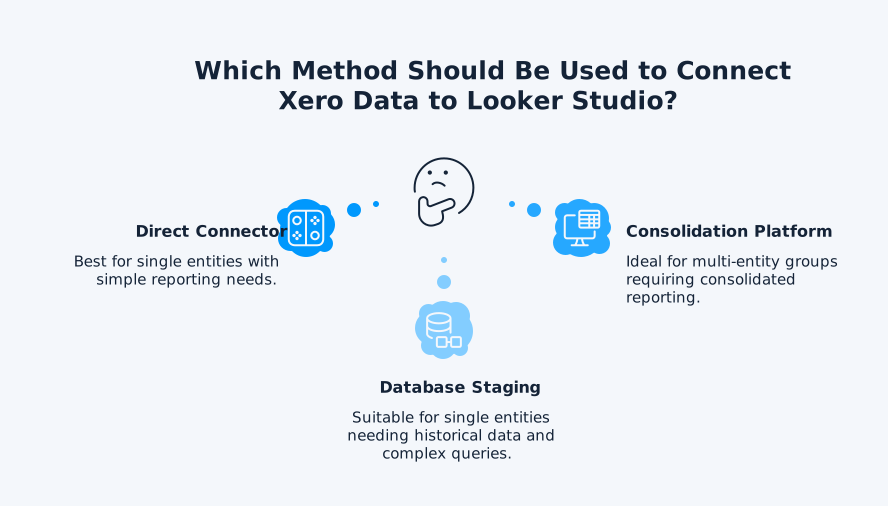
To build a Looker Studio dashboard from Xero, you’ll usually connect Xero via a connector or a reporting database layer – because there isn’t a universal “native” Xero connector inside Looker Studio itself. For single-entity reporting, a connector may be enough. But for multi-entity groups, the bigger challenge isn’t the dashboard tool – it’s producing a clean, consolidated dataset that Looker Studio can reliably visualise.
That’s where dataSights fits: it acts as a consolidation layer for Xero, giving you a single, standardised dataset (across entities) before you build dashboards in Looker Studio.
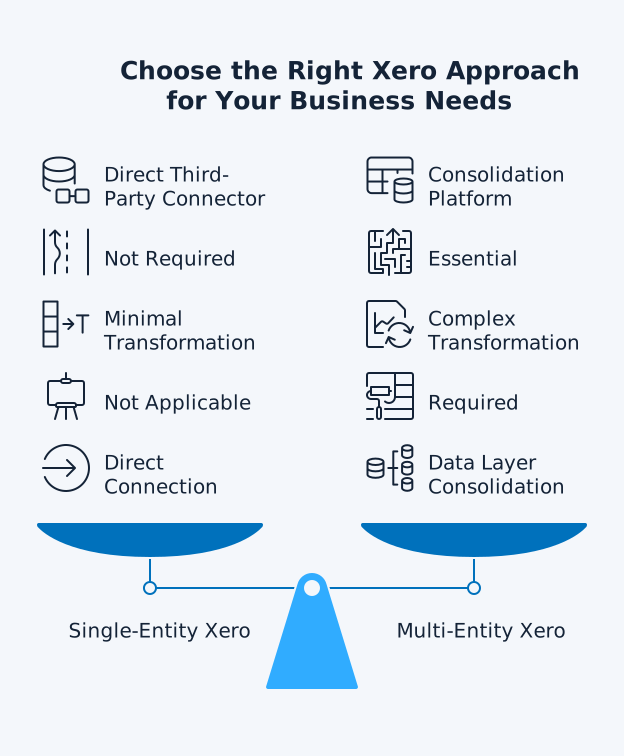
Choose the Right Approach (Single Entity vs. Multi-Entity)
- Single-entity reporting (fastest start): A connector approach can work when you just need dashboards for one Xero organisation and your chart of accounts and dimensions are already stable.
- Multi-entity reporting (recommended): If you need group-level P&L, balance sheet, cash flow, or budget vs actual across multiple Xero organisations, you’ll get more reliable dashboards by consolidating first – then connecting Looker Studio to the consolidated output. Xero has publicly indicated that consolidated reporting across multiple organisations isn’t currently planned, which is why teams typically use a separate consolidation layer for group reporting.
Why dataSights Is the Preferred Consolidation Layer for Looker Studio
When you use Looker Studio directly on raw Xero data (especially across entities), you’ll often run into inconsistent account structures, uneven tracking categories, intercompany complications, and reconciliation issues. dataSights helps by:
- Consolidating multiple Xero organisations into one reporting-ready view
- Standardising mappings so accounts/categories roll up consistently across entities
- Reducing manual work by removing the need to export, merge, and re-check spreadsheets every period
- Making dashboards more stable because Looker Studio sits on a clean, repeatable dataset (instead of blended, fragile data sources)
What “Connecting” Typically Involves (So Expectations Stay Realistic)
Whether you use a connector or a consolidation layer, the workflow still centres on authentication, shaping, and refresh controls.
- Authenticate securely: If you’re connecting via API-based tooling, note that Xero uses OAuth 2.0 (not basic API keys).
- Define the reporting outputs first: Start with what your dashboard must show (group P&L, group balance sheet, cash position, AR/AP, budget vs actual), then work backwards into the dimensions you need (entity, department, tracking categories, account groups, period).
- Set refresh expectations (avoid “real-time” promises): Looker Studio supports configurable data freshness for many connectors, but refresh options vary by connector type and may be limited.
Configure Access and Sharing the Safe Way
Before sharing dashboards outside finance, decide how viewers authenticate to the underlying data:
- Owner’s credentials: Easier sharing, but you must control report access carefully
- Viewer’s credentials: Stronger governance, more admin overhead
- Service account credentials: Helpful for controlled access patterns (where supported)
Common Pitfalls (and How to Avoid Them)
- Trying to “consolidate” inside Looker Studio: Consolidate upstream (dataSights) so totals reconcile and definitions stay consistent.
- Inconsistent chart of accounts across entities: Use mapping/standardisation before dashboards.
- Fragile blends and slow dashboards: Use a single consolidated source instead of multiple blended sources.
Before you build your Looker Studio report, decide whether you’re reporting on a single Xero entity or consolidating multiple organisations. If it’s multi-entity reporting, consolidate in dataSights first, then connect Looker Studio to the consolidated output. Finally, confirm OAuth access, set refresh expectations, configure data credentials for sharing, and validate that dashboard totals reconcile to Xero financial reports.
The Multi-Entity Challenge: Where Looker Studio Hits Limits
Single-entity Xero reporting in Looker Studio works reasonably well with the right connector. Multi-entity consolidation is where most approaches fall apart.
Xero confirmed on their product ideas forum that consolidated reporting is “not currently planned.” Each Xero entity operates in isolation with:
- No group view
- No automatic eliminations
- No consolidated Trial Balance
- No management packs combining operational KPIs with financial metrics
Multi-entity teams often end up exporting each Xero organisation separately, then combining results in spreadsheets for mapping, eliminations, and reconciliations. This creates manual effort and introduces avoidable risk at month-end.
The mathematics work against you. Ten entities might have 45 potential intercompany pairs requiring elimination. Twenty entities could have 190 possible pairs. dataSights’ research shows that manual consolidation stretches month-end close from ~5 business days to over 15 business days for multi-entity businesses, with time increasing exponentially.
Intercompany Eliminations: The Critical Gap
Connecting multiple Xero organisations to Looker Studio via separate data sources doesn’t solve the consolidation problem. You still face:
- Intercompany revenue and expenses: Inflated group figures when Entity A sells to Entity B
- Intercompany loans: Receivables and payables that must net to zero at group level
- Unrealised profit in inventory: Markup on goods transferred between entities
- Investment eliminations: Parent’s investment against subsidiary equity
Looker Studio cannot perform these eliminations automatically. The tool visualises data – it doesn’t transform it in accordance with consolidation accounting rules. Without proper eliminations happening before data reaches Looker Studio, your financial dashboard shows incorrect numbers.
Building a Proper Xero Consolidation Architecture for Looker Studio
The solution for multi-entity Xero businesses requires eliminations to happen in the data layer, not the visualisation layer.
The dataSights Approach
dataSights provides automated Xero consolidation that handles the complexity most dashboard connectors ignore. The platform pulls data from multiple Xero APIs into a dedicated cloud database where eliminations happen automatically with full audit trails.
The architecture works as follows:
- Xero APIs feed into a secure, dedicated Azure SQL database per customer
- Configured elimination rules process intercompany transactions automatically
- Consolidated data connects to your choice of output
Output options include:
- Management Reports on the dataSights web platform
- Automated Excel refreshes via Power Query
- Power BI dashboards
- Google Sheets
For teams preferring Looker Studio specifically, the consolidated database can serve as the data source. Your Looker Studio financial dashboard then displays properly eliminated group figures rather than raw entity data with double-counted intercompany transactions.
Why the Data Layer Matters
Consider what happens without proper data architecture. Entity A sells £100,000 of services to Entity B. Without elimination:
- Your dashboard shows £100,000 revenue in Entity A
- Your dashboard shows £100,000 expense in Entity B
- The group hasn’t earned anything from itself, but the dashboard doesn’t know that
Multiply this across dozens of entities with hundreds of intercompany transactions monthly. Your dashboard looks impressive but delivers misleading information. The CFO makes decisions based on inflated revenue figures.
dataSights’ SQL database approach ensures that the elimination process is consistently performed every period. The elimination rules you configure once apply automatically, with documented audit trails showing exactly what was eliminated and why.
Looker Studio vs Power BI for Financial Dashboards
Finance teams often compare Looker Studio and Power BI when selecting a dashboard tool. The right choice depends on your specific requirements.
When Looker Studio Fits Best
Looker Studio offers a more straightforward interface with a drag-and-drop editing sidebar. It’s easier to add data sources, create charts, and build reports quickly.
Looker Studio works particularly well when:
- Your organisation primarily uses Google tools (Analytics, Ads, Sheets)
- You need a free, lightweight reporting solution
- Quick, simple dashboards with minimal setup time matter most
- Non-technical users need to create and edit reports
- Reporting dataset is already cleaned and summarised; if you rely on file uploads/extracts, you’ll need to stay within the relevant connector limits (for example, uploaded data sources have documented file-size constraints)
Looker Studio is often a strong fit when you want a lightweight, shareable dashboarding layer – especially if your team already works in Google Workspace and your reporting dataset is already structured.
When Power BI Fits Better
Power BI is usually a better fit when you need enterprise-scale modelling, advanced transformations, and tighter governance across large reporting environments.
Power BI proves optimal when:
- You need enterprise-grade security with row-level security and Azure AD integration
- Microsoft ecosystem integration matters (Teams, SharePoint, Excel)
- You need larger semantic models, complex modelling, and enterprise governance – especially in Premium/Fabric capacity scenarios.
- Predictive analytics requirements exist (AutoML, Copilot, Python/R integration)
- Detailed governance and administration features matter
If your comparison is driven by data freshness, Power BI semantic models can run in Import or DirectQuery mode. DirectQuery is designed for scenarios where data volumes are too large to import or where you need near real-time results beyond scheduled refresh limits.
For multi-entity Xero consolidation specifically, Power BI’s deeper data modelling capabilities offer advantages. dataSights provides direct Power BI connections with pre-built report templates.
The Hybrid Approach
Some organisations use both tools: Looker Studio for lightweight, shareable dashboards and Power BI for deeper modelling and enterprise reporting – depending on team needs and governance requirements.
This hybrid approach makes sense when:
- Different teams have different requirements
- Marketing dashboards focus on Google Analytics and Ads performance
- Financial reporting requires complex eliminations and drill-down capability
Step-by-Step: Creating Your Looker Studio Financial Dashboard
Follow this process to build a Looker Studio financial dashboard for Xero data.
Step 1: Prepare Your Data Source
Before touching Looker Studio, ensure your data is ready for visualisation.
For single-entity Xero:
- Choose a connector (Coupler.io, Windsor.ai, or similar)
- Configure which Xero endpoints to sync (invoices, payments, accounts, journals)
- Set refresh schedules aligned with your reporting cadence
For multi-entity Xero:
- Implement a consolidation solution that eliminates intercompany transactions
- dataSights’ Xero consolidation handles this automatically
- Connect Looker Studio to the clean, consolidated data source
Step 2: Connect to Looker Studio
- Open Looker Studio and create a new blank report
- Select your data source:
- For direct connector approaches, use the relevant partner connector
- For database-staged data, use the built-in SQL Database Connector
- For Google Sheets intermediary, select the Google Sheets connector
- Verify your connection shows the expected tables and fields
Step 3: Build Your Core Metrics
Start with scorecards displaying your primary KPIs:
- Cash balance: Current liquidity position
- Monthly recurring revenue: Or total revenue, depending on business model
- Net burn: Or net profit for the period
- Accounts receivable and payable totals: Working capital position
Position your most critical KPIs at the top (e.g., cash balance/runway, net profit margin, and budget vs. actual) so stakeholders can understand business health at a glance.
Step 4: Add Trend Visualisations
Below your headline scorecards, add time-series charts showing:
- Revenue trends over the past 12 months
- Expense categories trending against budget
- Cash flow movement month-over-month
- Profit margin evolution over time
These charts provide context that point-in-time numbers cannot.
Step 5: Enable Interactivity
Add date-range selectors to allow users to adjust the reporting period. Include filters for:
- Entity (if showing multiple entities before consolidation)
- Department or cost centre
- Customer or supplier
- Product line or revenue category
This interactivity lets stakeholders explore data themselves rather than requesting custom report versions.
Step 6: Configure Distribution
- Set up scheduled email delivery to send the dashboard to key stakeholders automatically
- Configure different filtered views for different audiences
- Consider embedding dashboards in internal portals for easy access
Common Looker Studio Dashboard Mistakes to Avoid
Looker Studio can make Xero reporting faster and more visible – but only if the dashboard stays accurate, consistent, and easy to interpret at month-end. Here are the most common pitfalls that create rework (or worse, mistrust in the numbers) and how to avoid them.
Mistake 1: Connecting Raw Multi-Entity Data
Visualising unconsolidated data from multiple Xero entities creates misleading dashboards. Revenue appears doubled where intercompany sales exist. Ensure consolidation and elimination happen before data reaches Looker Studio.
Mistake 2: Ignoring Data Freshness
A dashboard showing stale data provides false confidence. If your connector syncs weekly but users assume real-time data, decisions happen based on outdated information. Clearly display “data as of” timestamps and set refresh schedules that match actual business needs.
Mistake 3: Overloading With Metrics
More charts don’t mean better insight. Keep dashboards focused: start with one purpose (cash, profitability, or variance), then expand only when stakeholders consistently use the outputs.
Mistake 4: Skipping the Data Quality Step
Looker Studio will visualise whatever data you provide – including errors. Standardise your chart of accounts, ensure consistent tracking/category usage, and validate totals against Xero financial statements before rolling dashboards out to stakeholders.
Mistake 5: Forgetting Mobile Users
Executives often check dashboards on phones between meetings. Test your dashboard on mobile devices and simplify layouts for smaller screens where necessary.