
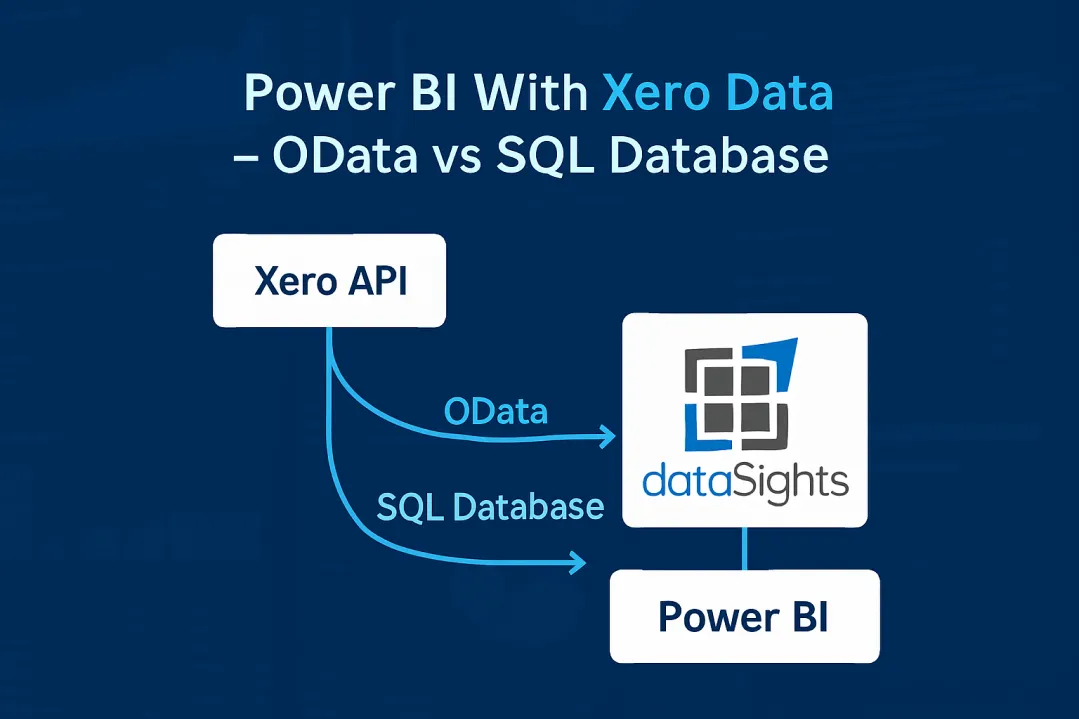
You're connecting Xero to Power BI and facing a critical decision: OData or SQL database? When implementing Power BI with Xero data – OData vs SQL Database architectures offer vastly different capabilities for report performance and multi-entity consolidation. Your CFO wants real-time dashboards, your team needs reliable month-end reporting, and you're dealing with multiple Xero organisations. This choice between OData's direct connection and SQL's staged approach impacts everything from API limits to refresh speeds. Let's cut through the confusion with hard data and technical specifics.
Power BI With Xero Data - OData vs SQL Database
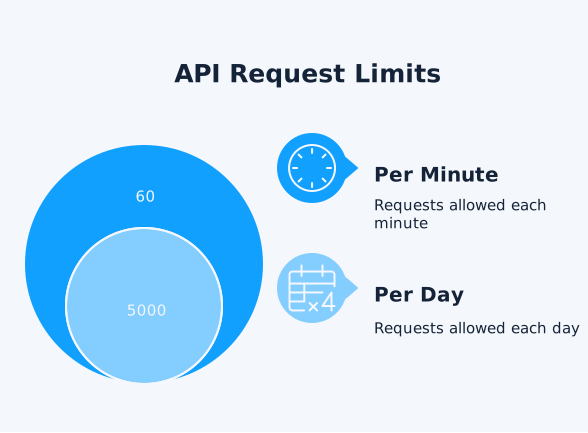
Power BI with Xero data using OData connects directly to the Xero API, but every report refresh and drill-down consumes your Xero API limits of 60 calls per minute and 5,000 calls per day per organisation. A staged SQL database offloads this load to a scheduled sync, so Power BI queries the database instead of Xero, improving performance on large datasets and supporting multi-entity consolidation. For growing groups with multiple Xero organisations and high report usage, a SQL database usually becomes the more scalable and reliable option.
Ready to Automate Your Financial Consolidation?
Stop wrestling with manual consolidations and broken formulas. dataSights automates multi-entity reporting, Xero consolidations, and Power BI connections. Join 300+ businesses already transforming their financial reporting with our platform, rated 5.0 out of 5 by 90+ verified Xero users.
Table of Contents
Understanding OData Connections to Xero
OData transforms your Xero data into a standardised feed that Power BI can consume directly. When you connect through OData, you're creating a live pipeline between Xero and Power BI.
OData feeds provide near real-time access to multiple Xero API endpoints, including invoices, contacts, and reports. You copy a URL, paste it into Power BI's OData connector, and your data appears. No databases, no synchronisation, no complex setup.
But here's what happens behind the scenes:
- Every filter, every drill-down, every page refresh triggers new API calls to Xero.
- Your Power BI report sends queries directly to Xero's servers, which process the request and return the results.
- This direct connection means you're always viewing current data – the invoice you created five minutes ago appears immediately in your dashboard.
The simplicity comes with constraints. While OData supports query folding in theory, the folding status cannot be determined beforehand and is instead determined at runtime, meaning Power Query often cannot push transformations back to the source. Custom functions are subject to restrictions, and complex transformations must occur locally in Power Query rather than at the source. This means Power BI downloads entire tables, then filters locally, dramatically impacting performance.
See how dataSights' Power BI templates streamline Xero consolidation setup in this practical demonstration:
SQL Database Architecture for Xero Data
SQL database architecture takes a fundamentally different approach. Your Xero data syncs to a cloud database, typically Azure SQL or a similar platform, creating a staging area optimised for reporting.
Here's the data flow:
- Xero API → Cloud Database → Power BI. Tools like dataSights automate this pipeline, syncing data as frequently as every 5 minutes for sales data or daily for full financial refreshes. The database approach centralises API usage in a scheduled sync process, so multi-entity reporting does not add extra API load. This is crucial for businesses running 20+ organisations, because report usage and user drill-downs no longer risk hitting Xero's rate limits.
- Azure SQL databases use indexed tables and optimised query plans to improve performance for analytics workloads. Query Store automatically captures query performance statistics, so you can troubleshoot and stabilise slow-running reports. In Power BI, you are querying tables designed for reporting, not production accounting systems. This architecture supports full Power Query functionality in both Excel and Power BI, including complex transformations, custom columns, and advanced DAX calculations, all of which work without the restrictions you encounter when connecting directly via OData.
- The database becomes your single source of truth. Multiple Xero entities consolidate into unified tables. The database enables automated currency conversions through configured exchange rate tables and scheduled updates. Intercompany eliminations are processed through elimination rules you define in the database layer. Once these consolidation rules are configured, your Power BI reports connect to clean, transformed, ready-to-use data structures. Intercompany eliminations process in the database layer. Your Power BI reports connect to clean, transformed, ready-to-use data structures.
This centralised approach reduces risk of misstatement by enforcing consistent consolidation logic across all reports. Your control environment strengthens significantly – instead of ad-hoc Excel workbooks with varying elimination logic, all adjustments flow through documented, auditable database rules. This architecture directly supports compliance with audit requirements by maintaining transparent consolidation trails and version-controlled business logic.
Xero API Rate Limits and Their Impact
Xero enforces strict API limits: 60 calls per minute, 5,000 calls per day, and a maximum of 5 concurrent connections per organisation. These limits apply per app, per organisation – not per user or company total.
Let's calculate the real impact:
- A typical financial dashboard with 10 visuals might generate 15-20 API calls per refresh.
- Add filters and drill-downs, and you're looking at 50+ calls per user interaction.
- With 10 users accessing reports throughout the day, you can approach or exceed the 5,000 daily limit very quickly.
Multiple Xero organisations compound the problem. Each entity has separate limits, but OData tools must manage connections across all organisations simultaneously. Consolidating 10 entities means juggling 10 sets of rate limits, 10 authentication tokens, and coordinating refresh schedules to avoid throttling.
The database approach completely sidesteps these limitations:
- Your sync tool makes controlled API calls to populate the database, typically 100 calls per entity during the initial sync and 20-30 for incremental updates.
- Power BI never touches the Xero API directly. You could have 1,000 users hammering your reports simultaneously without generating a single Xero API call.
Performance Comparison: Real-World Metrics
Performance differences between OData and SQL databases are dramatic when measured objectively.
- In one reported test on a typical Xero dataset, an OData connection took around 11 seconds to return 40 MB of data before Power BI processed it. When you add pagination, transformation overhead, and network latency, refresh times for moderately complex reports can stretch into the 20–30 second range.
- The same dataset queried from an optimised Azure SQL database returned in under 2 seconds. Indexing, query optimisation, and local cloud processing keep performance consistent, even as data volumes grow into the tens or hundreds of millions of rows.
- Multi-entity scenarios amplify the difference. OData must query each Xero organisation sequentially; 10 entities means 10 separate connection negotiations, 10 authentication handshakes, and 10 sets of queries. A SQL database consolidates all entities into single tables, returning unified results in one query.
- Reports using SQL databases refresh in under 5 minutes for 30+ entities, whereas OData connections either timeout or exceed hit rate limits when attempting the same consolidation.
Multi-Entity Consolidation Requirements
Consolidating multiple Xero entities demands more than just combining data – you need eliminations, currency conversions, and mapping between different charts of accounts.
OData connections don't provide true consolidation out of the box:
- You're limited to importing each entity separately, then attempting to merge them in Power BI.
- While you can technically layer eliminations and FX in Power BI, it quickly becomes unmanageable beyond a few entities.
- No pre-built elimination frameworks.
- No integrated currency handling.
- Manual mapping of accounts across entities requires extensive DAX and Power Query logic.
SQL database architecture enables proper financial consolidation with automated intercompany eliminations:
- Transactions between entities are identified and removed.
- Multi-currency conversions apply at the database level using daily exchange rates.
- Different charts of accounts map to a group structure automatically.
The technical requirements are substantial:
- Elimination rules must identify intercompany transactions
- Currency tables require daily updates, and
- Account mappings necessitate ongoing maintenance as entities evolve.
dataSights handles small and large consolidation of entities, processing eliminations through configured rules and maintaining full audit trails of adjustments. This approach dramatically reduces compliance risk – external auditors can trace every elimination back to its source transaction, review consolidation logic in transparent SQL views, and verify that group-level adjustments follow consistent, documented rules.
Consider the practical impact: month-end consolidation, which previously took 15 days of Excel manipulation, reduces to under 5 days with automated database consolidation. Your balance sheets actually balance across entities. Your P&L eliminates intercompany sales correctly. More importantly, your finance team can demonstrate to auditors exactly how consolidation adjustments were calculated and applied.
Implementation Complexity and Costs
Let's address the elephant in the room: the implementation complexity and actual costs associated with each approach.
- OData Implementation: Setting up OData appears simple initially. OdataLink states that pricing is based on the number of Xero organisations you connect, with tiered discounts for multiple entities; however, specific pricing varies by provider and region. The setup process involves registering an account, configuring your data model, and adding Xero organisations – a process marketed as requiring no software installation.
But the hidden complexity emerges later. Performance optimisation requires careful query design. Rate limit management needs scheduled refresh coordination. Multi-entity reports demand complex DAX to merge data properly. You're looking at weeks of trial and error to build stable, performant reports.
- SQL Database Implementation: Database architecture requires more upfront investment. According to Microsoft's published pricing, Azure SQL Database offers entry-level tiers suitable for small workloads and scales up to higher-performance tiers for production environments. If you include data integration tools like Azure Data Factory or SSIS-based pipelines, total monthly costs vary by region, scale, and execution model. Many finance teams start on entry-level Azure SQL tiers and scale up only as data volumes and refresh frequency grow.
Initial setup takes 2-3 days: database provisioning, schema design, sync configuration, and connection testing. But once configured, adding new entities takes minutes, not hours. Reports built on clean database tables require minimal optimisation.
dataSights offers managed database solutions starting at $55 USD monthly, for one company and one data source, while custom connector development incurs a one-time fee of US$500.
Choosing the Right Architecture
Your choice between OData and SQL database depends on specific requirements – there's no universal answer.
Choose OData when:
- You have a single Xero organisation
- Real-time data is absolutely critical (updated every second)
- Report usage is minimal (under 10 users)
- Data volumes are small (under 10,000 transactions monthly)
- Budget is extremely limited
Choose SQL Database when:
- You're consolidating multiple entities
- Performance and reliability are priorities
- You need full Power Query and DAX functionality
- Data volumes exceed 50,000 transactions monthly
- You require audit trails and historical snapshots
- Compliance requirements demand documented consolidation logic
The database architecture becomes essential when external audit requirements demand transparent consolidation processes. If your auditors need to trace eliminations, verify FX calculations, or review historical consolidation snapshots, SQL databases provide the control environment and documentation trails that OData connections simply cannot match.
The decision often makes itself. Once you reach Xero's API limits with OData, or when report refreshes take 30 seconds or more, the SQL database becomes necessary rather than optional.
Making OData Work: Optimisation Strategies
If you're committed to OData, these optimisation strategies can improve performance:
- Disable parallel loading in Power BI to reduce concurrent API calls. Navigate to File → Options → Data Load and uncheck "Enable parallel loading of tables." This prevents throttling by loading tables sequentially.
- Implement selective column loading. Instead of importing entire tables, specify only required columns in your OData query. This significantly reduces payload size and processing time.
- Use query folding where possible. Structure your Power Query transformations to push filters back to Xero. Check query folding by right-clicking a step and looking for "View Native Query." If it's greyed out, that transformation occurs locally.
- Schedule refreshes during off-peak hours. Xero's servers respond faster outside business hours, and you're less likely to hit rate limits when fewer users are active.
Advanced SQL Database Features
SQL databases unlock advanced capabilities that are not possible with OData connections.
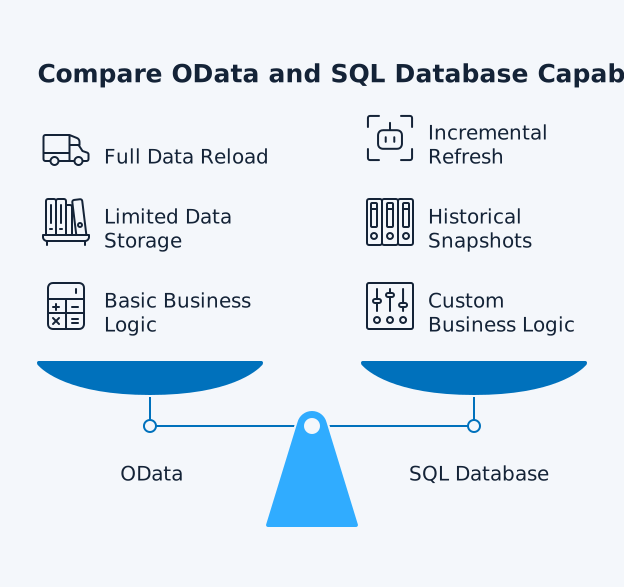
- Incremental Refresh: Power BI's incremental refresh relies on query folding so that date filters can be pushed back to the source. While OData endpoints can support folding in theory, most Xero OData connectors do not provide reliable folding for large tables, so incremental refresh is either not available or ends up reloading all data on each refresh. SQL databases, by contrast, support robust query folding, allowing incremental refresh to update only changed records instead of reloading entire datasets.
- Historical Snapshots: Databases can store point-in-time snapshots of your Xero data. Compare this month's trial balance to last year's. Track customer balance trends over time. Build year-over-year comparisons without querying historical data from Xero. Historical snapshots become critical during audit season. External auditors frequently request prior-period consolidations to verify opening balances or test controls over financial close processes. With database snapshots, you can instantly recreate last quarter's consolidated trial balance exactly as it appeared on the close date – something impossible with OData connections that only access current Xero data.
- Custom Business Logic: SQL views and stored procedures enable the addition of calculated fields, business rules, and complex transformations at the database level. Your KPIs are calculated once in SQL, then every report uses the same consistent logic.
dataSights includes pre-built SQL views for common financial reports, eliminating weeks of development time.
This centralised logic strengthens your control environment significantly. When elimination rules live in documented SQL procedures rather than scattered across multiple Excel workbooks or Power BI reports, you've established a single source of truth that auditors can review, test, and approve. Changes to consolidation logic require deliberate updates to central procedures, creating natural change management controls that ad-hoc spreadsheet consolidations lack entirely.
Frequently Asked Questions
Can OData Handle Multiple Xero Organisations Simultaneously?
Yes, OData can connect to multiple Xero organisations, but each requires separate authentication and connection management. You'll quickly reach the API rate limit of 60 calls per minute when refreshing multiple entities simultaneously. Most businesses find OData impractical beyond 3-4 organisations.
What Happens When I Hit Xero's API Rate Limits?
When you exceed rate limits, Xero returns HTTP 429 errors and your reports fail to refresh. Xero provides a "Retry-After" header indicating when you can resume API calls, typically 60 seconds for minute limits or several hours for daily limits. Your Power BI refreshes will fail until limits reset.
Does OData Support Power BI's Incremental Refresh Feature?
No, OData connections don't support incremental refresh because they lack query folding capabilities. This means you must reload the entire dataset with each refresh, which impacts performance and API limits.
Which Method Provides More Real-Time Data?
OData provides true real-time data – every query hits Xero's live database. SQL databases typically sync every 15 minutes to 24 hours, depending on configuration. However, SQL databases can sync as frequently as every 5 minutes for critical data while maintaining performance.
Can I Use Both OData and SQL Database Together?
Yes, you can create composite models in Power BI combining both connection types. Use SQL databases for historical reporting and consolidated views, while connecting via OData for specific real-time metrics. This hybrid approach balances performance with data freshness.
What Size Dataset Makes SQL Database Necessary?
There is no universal cutoff, but OData performance tends to degrade as you move beyond moderate data volumes, especially with millions of rows, large payloads, or very frequent refreshes. At that point, staging Xero data in SQL usually delivers faster, more predictable refresh times and gives you room to scale multi-entity reporting.
How Difficult Is It to Switch From OData to SQL Database?
Switching requires rebuilding your data model and reports to reference the new SQL database source. Plan for 1-2 weeks of migration effort, including testing. However, report refresh times typically improve by 70% after migration, justifying the investment.
Transform Your Xero Reporting Architecture Today
You've seen the data: OData connections quickly hit rate limits at scale, while SQL databases enable repeatable, enterprise-grade reporting. The choice between OData and SQL database architecture shapes not just your Power BI reporting, but your ability to produce consolidated, management-ready packs across multiple Xero entities. For serious financial reporting, a staged SQL database layer is no longer optional – it is the foundation for accurate, auditable consolidation.
Automate Your Xero Consolidation With dataSights
Stop wrestling with manual consolidations and broken formulas. dataSights delivers board-ready consolidated management packs through our web platform, with automated Xero data into Excel and direct SQL connections for Power BI dashboards. Join 300+ businesses already transforming their financial reporting with our platform, rated 5.0 out of 5 by 90+ verified Xero users.
About the Author
Kevin Wiegand
Founder & Client happiness
I'm Kevin Wiegand, and with over 25 years of experience in software development and financial data automation, I've honed my skills and knowledge in building enterprise-grade solutions for complex consolidation and reporting challenges. My journey includes developing custom solutions for data teams at Gazprom Marketing & Trading and E.ON, before founding dataSights in 2016. Today, dataSights helps over 300 businesses achieve 100% report automation. I'm passionate about sharing my expertise to help CFOs and Financial Controllers reduce their month-end close time and eliminate the manual Excel exports that drain their teams' valuable time.