

Managing multiple transactions efficiently is one of the biggest challenges finance teams face during month-end close. Can you combine transactions in Xero to save time and reduce errors? It’s a question many financial controllers ask, and the answer isn’t straightforward. While Xero offers some transaction matching features, it has significant limitations that often require creative workarounds or third-party solutions. Let’s explore exactly what you can and can’t do when combining transactions in Xero, plus the automated alternatives that can transform your reconciliation process from a time-consuming manual task into an efficient, automated workflow.
Can You Combine Transactions in Xero?
Xero allows you to match multiple invoices to a single bank payment using the Find & Match feature, but you cannot combine multiple bank statement lines into one transaction. This limitation means finance teams often spend hours manually reconciling split payments, various deposits, and complex transactions, contributing to month-end closes that stretch beyond 15 days.
Ready to Automate Your Financial Consolidation?
Stop wrestling with manual consolidations and broken formulas. dataSights automates multi-entity reporting, Xero consolidations, and Power BI connections. Join 300+ businesses already transforming their financial reporting with our platform, rated 5.0 out of 5 by 90+ verified Xero users.
Table of Contents
Understanding Xero’s Transaction Matching Capabilities
Xero’s reconciliation features work well for straightforward scenarios but become cumbersome when dealing with complex transaction patterns. Here’s what you can do:
Find & Match Function
The Find & Match feature lets you reconcile one bank statement line with multiple invoices or bills. When a customer pays several invoices with one payment, you can:
- Click Find & Match next to the bank statement line
- Select multiple invoices using checkboxes
- Click OK to reconcile all selected items against the single payment
The above works when matching multiple invoices paid at once to a single bank transaction.
See how dataSights enables advanced transaction data manipulation and reporting automation in this practical demonstration:
Split Function for Partial Payments
When you need to apply part of a payment to an invoice:
- Select the invoice in Find & Match
- Click the Split option (appears on the transaction line between the reference and amount columns)
- Enter the partial amount to allocate
- Leave the remainder for future reconciliation
Note that users report that the split function is disabled once a bill is marked as paid. If you need to split an already paid transaction, you’ll need to use Remove & Redo first.
Common Transaction Combination Scenarios in Xero
Multiple Bank Lines to One Transaction – The Major Limitation
Here’s where Xero falls short: you cannot combine multiple bank statement lines into a single transaction. Accounting teams report that this creates a significant manual workload, especially when:
- ATM deposit limits force multiple entries for one cash deposit
- Banks process check deposits separately
- Payment processors split transactions across multiple lines
Current workarounds include:
- Creating manual adjustments
- Using temporary clearing accounts
- Deleting and recreating transactions to match bank feeds
Merging Draft Invoices
Before sending invoices, you can consolidate multiple drafts:
- Go to draft invoices and select the ones to merge
- Choose “Copy & merge into a new…”
- Create a consolidated invoice with all line items
- Delete the original drafts manually
Third-party integrations note that original invoice references must be manually tracked, as Xero doesn’t automatically maintain these links when merging.
Allocating Transactions Across Multiple Accounts
For expense claims or department allocations:
- Click “Add details” during reconciliation
- Add multiple line items with different account codes
- Use tracking categories to tag transactions by department, project, or region
- Use the calculator function for precise percentage splits
Limitations of Native Xero Transaction Handling
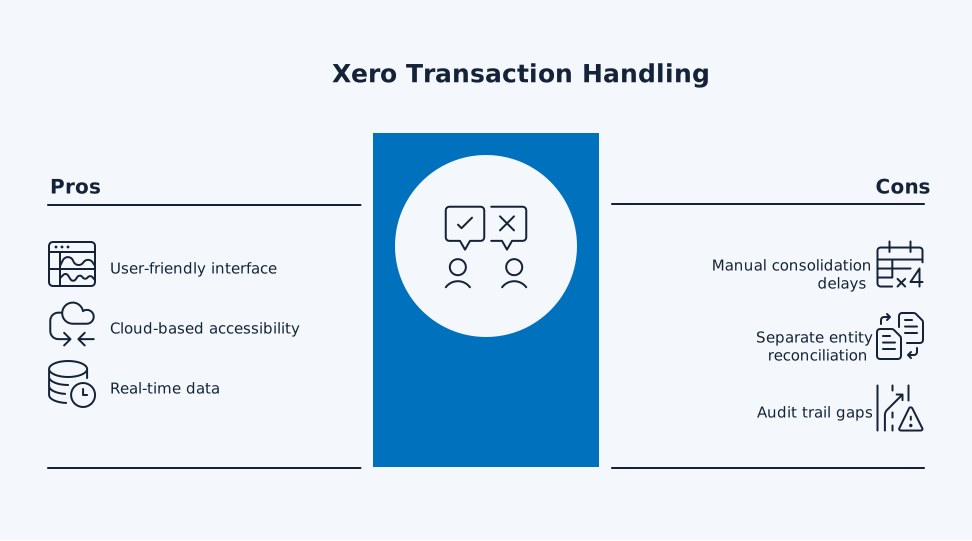
Why Manual Consolidation Takes So Long
Manual reconciliation processes are cited as a primary challenge for accounting teams, with issues including:
- No bulk reconciliation for multiple bank lines
- Each split payment requires individual processing
- Limited automation for recurring transaction patterns
- Manual tracking of partial payments across periods
The Multi-Entity Challenge
For businesses with multiple Xero organisations:
- Each entity requires separate reconciliation
- No native cross-entity transaction matching
- Manual consolidation reports needed
- Risk of intercompany elimination errors
Audit Trail Concerns
When working around Xero’s limitations:
- Original transaction details may be lost
- Manual adjustments create reconciliation gaps
- Deleted transactions leave incomplete trails
- Merged invoices don’t automatically link to originals
Automated Solutions for Transaction Consolidation
Beyond Manual Workarounds
While Xero’s native features have limitations, automated consolidation tools can transform your process. dataSights’ Xero consolidation solution (free trial is available) addresses these exact pain points:
- Consolidate multiple entities automatically
- Handle complex transaction matching scenarios
- Maintain complete audit trails
- Reduce month-end close from over 15 days to under 5 days
Real-Time Data Synchronisation
Instead of manual exports and imports:
- Connect Xero directly to Power BI
- Automated refresh schedules
- No more CSV exports or broken formulas
- Real-time visibility across all entities
Handling Complex Scenarios
Automated tools excel where Xero struggles:
- Multi-currency consolidations with automatic FX conversions
- Intercompany eliminations
- Journal adjustments across entities
- Bulk transaction processing
Best Practices for Transaction Management in Xero
Optimise Your Current Process
While considering automation options:
- Create bank rules for recurring transactions
- Use consistent reference numbers
- Set up tracking categories properly
- Reconcile accounts daily to avoid backlogs
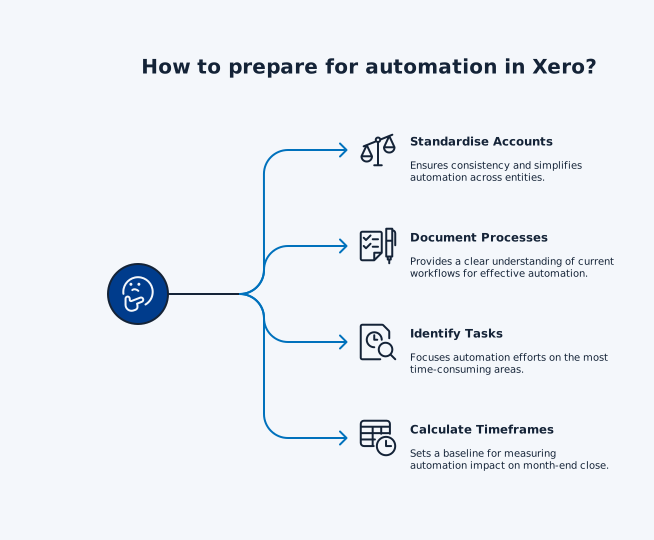
Prepare for Automation
To maximise automation benefits:
- Standardise your chart of accounts across entities
- Document current manual processes
- Identify your most time-consuming reconciliation tasks
- Calculate current month-end close timeframes
Consider Your Growth Trajectory
As transaction volumes increase:
- Manual processes become unsustainable
- Error rates rise with complexity
- Finance teams need scalable solutions
- Automation ROI improves with volume
Frequently Asked Questions
Why Can't I See the Split Option When Reconciling in Xero?
The Split function only appears when you select an unreconciled transaction in Find & Match. If you’ve already applied a payment to an invoice, you’ll need to use Remove & Redo first to make the Split option visible again.
Can I Combine Multiple Bank Deposits Into One Transaction in Xero?
No, Xero doesn’t allow combining multiple bank statement lines into a single transaction. You’ll need to reconcile each deposit separately or use a clearing account as a workaround.
How Do I Merge Invoices in Xero Without Losing Reference Numbers?
When using Copy & merge for draft invoices, manually note the original invoice numbers before merging. The merged invoice won’t automatically include these references, so you’ll need to add them to the description field.
What's the Fastest Way to Reconcile Multiple Payments to One Bill?
Use the Find & Match function to select all relevant bank transactions, but you’ll still need to split each payment individually. For high-volume scenarios, consider automated reconciliation tools.
Can I Match Transactions Across Different Xero Organisations?
No, Xero doesn’t support cross-entity transaction matching natively. You’ll need to export data from each organisation and consolidate manually, or use a multi-entity consolidation tool.
How Do I Handle Partial Payments That Span Multiple Periods?
Use the Split function to allocate the partial amount, leaving the remainder unreconciled. Xero will carry forward the outstanding amount for matching with future payments.
What Happens to My Audit Trail When I Merge Transactions?
Merged transactions in Xero don’t automatically maintain links to original documents. Document your merging process carefully and consider keeping original transactions as voided rather than deleted.
Is There a Bulk Reconciliation Feature for Similar Transactions?
Xero’s bank rules can auto-code similar transactions, but you’ll still need to reconcile each one individually. True bulk reconciliation requires third-party automation tools.
Transform Your Transaction Management Today
Manual transaction handling in Xero doesn’t have to be your bottleneck. While native features have limitations, the right automation can revolutionise your reconciliation process. Ready to see how businesses like yours cut month-end close from weeks to days? Discover how automated consolidation can transform your financial workflows.
Ready to Automate Your Xero Transaction Consolidation?
Stop wrestling with manual workarounds for combining transactions. dataSights’ automated Xero consolidation handles multiple entities, complex matching scenarios, and maintains perfect audit trails. Rated 5.0 out of 5 by 90+ Xero users who’ve already transformed their month-end close from weeks to under 5 days. Join 300+ businesses saving hours every month.
About the Author
Kevin Wiegand
Founder & Client happiness
I’m Kevin Wiegand, and with over 25 years of experience in software development and financial data automation, I’ve honed my skills and knowledge in building enterprise-grade solutions for complex consolidation and reporting challenges. My journey includes developing custom solutions for data teams at Gazprom Marketing & Trading and E.ON, before founding dataSights in 2016. Today, dataSights helps over 300 businesses achieve 100% report automation. I’m passionate about sharing my expertise to help CFOs and Financial Controllers reduce their month-end close time and eliminate the manual Excel exports that drain their teams’ valuable time.