
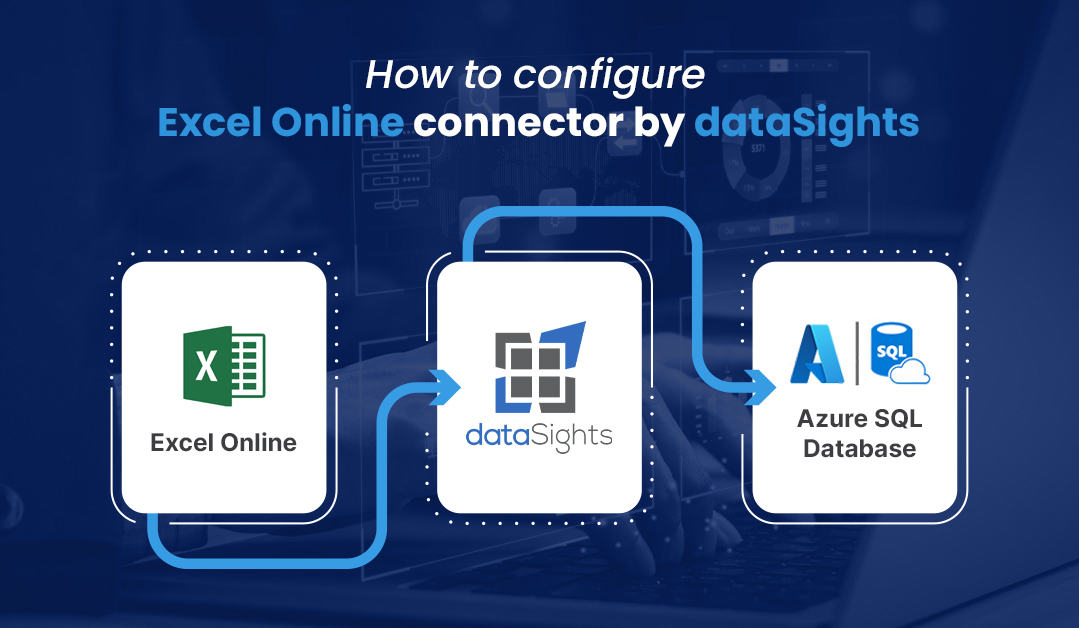
How to configure Excel Online connector by dataSights
Hello, Excel enthusiasts and data wizards! Today, we’re diving into the exciting world of syncing Excel Online into your datalake, by exploring how to seamlessly integrate it into your workflow. This guide is providing step-by-step instructions to enhance your data management experience.
1. Getting Started with Excel Online
First things first, let’s launch Excel Online. If you’re new to this, simply search for Excel Online and add a new entity. For demonstration purposes, we’ll name our entity ‘Demo.’ Remember, naming your entity is crucial for easy identification later. Additionally, there’s an option to receive notifications in case of errors – a handy feature for troubleshooting.
2. Connecting Your Account
The next step involves linking Excel Online with your Microsoft account. This process is straightforward, especially if you’re already logged into your Microsoft account. Just click ‘connect,’ and you’re all set.
3. Adding Files and Actions
Now, let’s add some content. Suppose you haven’t added any files yet; simply click on ‘add new action.’ For this example, we’ll create a ‘Minus Demo Call.’ This involves selecting a folder and specifying sheet names. In our case, we’re working with a ‘Test Sheet.’
4. Customizing Your Data Start Point
Excel Online offers flexibility in terms of where you begin your data entry. You can specify a particular row number to start from. For this guide, we’ll begin from the top row, ensuring we have ‘headers’ for our table.
5. Setting Up Columns and Data Types
Setting up your columns is a crucial step. Let’s say we need a text column and a decimal number. You can name these columns as you wish, for instance, ‘Text 1’ for the first column and so on. Positioning these columns correctly is vital for organized data management.
6. Inputting Formulas and Data Types
You can also incorporate formulas into your sheet. For instance, we use a date-time formula represented as ‘p/m/pi by pi.’ It’s important to configure each column correctly, whether it’s decimal, text, or date-time.
7. Saving and Editing
After configuring your Excel sheet, make sure to save your settings. Remember, you can always come back and edit these settings if necessary. This flexibility is what makes Excel Online a powerful tool for data management.
8. Conclusion
That’s a wrap on the basics of setting up and using Excel Online for your data management needs. Whether you’re a beginner or an Excel pro, these steps will help you streamline your data handling process, making your work more efficient and organized.
Thank you for joining this tutorial. Dive into Excel Online and explore the myriad ways it can enhance your data management!
kevinw@datasights.com.au
www.datasights.co